Is a Mini PC Easier to Move Than a Desktop?
On this page (8 sections)
Yes, a Mini PC is generally much easier to move than a traditional desktop computer. Its compact size and lighter weight make it ideal for frequent relocation. You can easily pack it up for travel or simply move it between rooms.
While desktops are designed to stay put, Mini PCs are built with portability in mind. They often connect to the same peripherals like monitors and keyboards as desktops, but their small form factor is the key difference for moving. This makes them a practical choice for many users.
- Mini PCs are significantly lighter than desktops.
- They take up much less space.
- Moving a Mini PC is as simple as unplugging a few cables.
- Traditional desktops can be heavy and bulky.
Let’s take a closer look at why Mini PCs win when it comes to moving and how they compare to their larger desktop cousins.
Moving Your Computer: Mini PC vs. Traditional Desktop
When you think about moving a computer, your first thought might be about hauling a bulky tower. You’re right to think that. Moving a Mini PC is significantly easier than moving a standard desktop. It’s one of their biggest perks.
Desktop computers are often quite heavy and awkward. They have large towers, plus all the cables and peripherals. Mini PCs, on the other hand, are designed to be small and light. This makes them a breeze to relocate.
The Weight Difference: Picking Up Your PC
Let’s talk about what you actually feel when you lift these machines. A typical desktop tower can weigh anywhere from 10 to 30 pounds, sometimes even more. This is due to larger power supplies, more robust cooling systems, and often, more hard drives or other components. Picking one up requires a bit of effort and care.
Now, consider a Mini PC. Many of these devices weigh less than 2 pounds. Some are even lighter, comparable to a thick book or a large smartphone. You can usually pick them up with one hand. This stark difference in weight makes a huge impact on how easy it is to move your computer from one spot to another.
Why the Weight Discrepancy Matters
The weight directly affects portability. If you need to move your computer across a room, pack it for a trip, or even just rearrange your workspace, a lighter device is always better. You’re less likely to strain yourself or feel like you’re wrestling with your technology.
Think about it like moving furniture. A heavy sofa is a two-person job. A small side table, however, you can lift and move yourself without a second thought. A Mini PC is like that side table – convenient and manageable.
Size and Space: Fitting Your PC In
Beyond just weight, the sheer physical size of a computer plays a big role in how easy it is to move. Desktops, with their tower form factor, need dedicated space. They often sit on the floor next to your desk or take up a significant chunk of desk real estate.
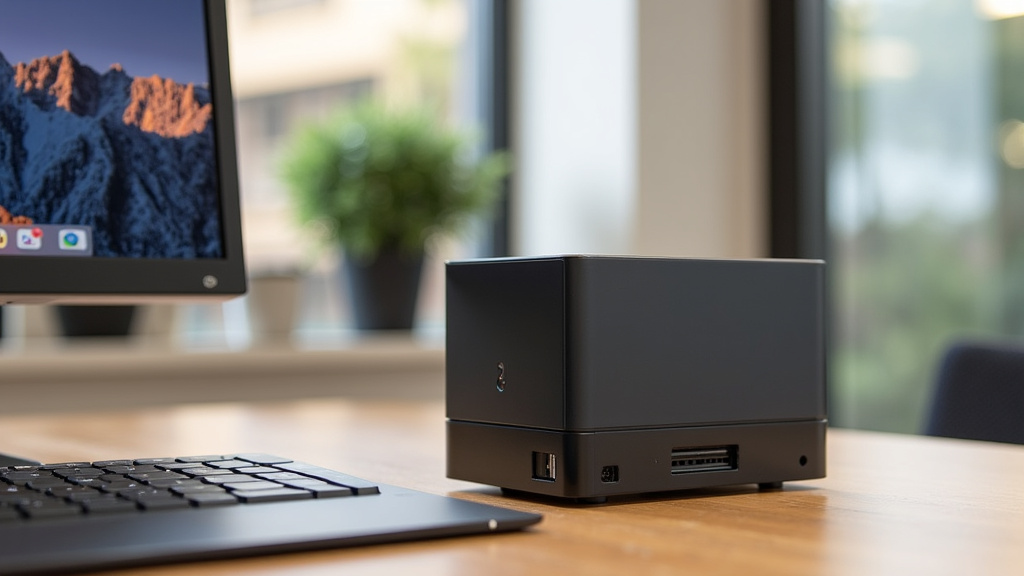
Mini PCs are designed to be incredibly compact. They can often fit behind a monitor, on a shelf, or even in a drawer. This small footprint means they don’t get in the way. When it’s time to move, there’s simply less bulk to deal with.
Packing and Unpacking a Mini PC
When you need to pack a Mini PC for travel, it’s usually as simple as unplugging the few cables attached. The unit itself is small enough to fit into a backpack or a carry-on bag. You don’t need a large box or special packing materials.
Compare this to packing a desktop. You might need to carefully wrap the tower to protect it. Then you have to find space for the tower, monitor, keyboard, mouse, and all the cables. It’s a much more involved process.
Desk Setup Simplicity
Even if you’re not traveling, the small size makes setting up and moving your Mini PC around your home or office much simpler. If you want to work from the living room for an afternoon, you can easily take your Mini PC with you. You just need a monitor and keyboard setup wherever you go.
This flexibility is a major advantage. You aren’t tethered to a single spot. Your Mini PC can go where you need it. This is a key reason many people choose them for flexible work or study arrangements.
Connectivity and Peripherals: The Moving Process
When we talk about moving a computer, it’s not just the main unit. You also have to consider all the things it connects to: the monitor, keyboard, mouse, speakers, and all the wires. This is where the difference between Mini PCs and desktops becomes even more apparent.
A traditional desktop setup involves a considerable number of cables. Power cords for the tower and monitor, video cables, USB cables for peripherals – it can quickly become a mess of wires. Unplugging all of them can be a tedious task.
What You Need to Unplug
With a desktop, you’ll be unplugging the power cord for the tower, the video cable connecting to your monitor, and then all the USB cables for your keyboard, mouse, and any other devices. You might also have speaker cables and Ethernet cables.
A Mini PC setup is often much simpler. You’ll unplug the power adapter for the Mini PC, the video cable to the monitor, and the USB cables for your keyboard and mouse. Many users opt for wireless keyboards and mice, which further reduces the number of cables you need to manage.
The Advantage of Fewer Cables
Fewer cables mean a faster and easier move. You spend less time fumbling behind your desk to disconnect everything. Reconnecting is just as straightforward. This makes spontaneous moves or setting up in a new location much less of a hassle.
Consider the scenario where you need to temporarily move your computer out of the way to clean. With a Mini PC, you can unplug it, move it aside, and be done in seconds. A desktop might take a few minutes just to disconnect everything.
Durability and Travel Concerns
When you move something, there’s always a concern about it getting damaged. Desktop towers, being larger and heavier, can be more susceptible to damage if dropped. Their internal components are more spread out, and a jolt could potentially dislodge something.
Mini PCs are small, but they are also often designed with robustness in mind. Their compact nature means fewer parts are loosely assembled. However, like any electronic device, they should still be handled with care when moving.
Protecting Your Mini PC on the Go
While they are easier to move, it’s wise to take precautions. Using a padded sleeve or a small case can offer extra protection. Ensuring all cables are disconnected and secured prevents them from snagging and causing damage during transit.
Many sources recommend keeping original packaging if you plan on frequent moves or shipping. The foam inserts and custom-fit box are excellent for safeguarding the device during transport (PC Mag).
A checklist for moving your Mini PC might look like this:
- Unplug all peripherals (monitor, keyboard, mouse).
- Disconnect the power adapter and video cable.
- Gently lift the Mini PC unit.
- Place it in a padded bag or its original box.
- Pack cables separately, bundling them to avoid tangles.
Comparing the Moving Experience: A Quick Look
To summarize, the difference in moving a Mini PC versus a traditional desktop is substantial. It boils down to size, weight, and the number of connections involved.
| Factor | Mini PC | Traditional Desktop |
|---|---|---|
| Weight | Very Light (under 2 lbs typical) | Heavy (10-30+ lbs typical) |
| Size | Compact, fits anywhere | Bulky tower, needs dedicated space |
| Cables to Unplug | Few (power, video, USB) | Many (power, video, multiple USB, audio, etc.) |
| Packing | Easy, fits in a bag | Requires careful packing, larger boxes |
| Time to Move | Minutes | Can take 10-15 minutes or more |
The Convenience Factor
The convenience of moving a Mini PC cannot be overstated. If you value flexibility and want a computer that can easily travel or move between different areas of your home or office, a Mini PC is the clear winner. It’s like choosing between a backpack and a large suitcase for a weekend trip – one is just much simpler to take with you.
This ease of movement is a major selling point for students, frequent travelers, or anyone who appreciates a clutter-free and adaptable workspace. You get the power you need without the bulk you don’t.
Conclusion
As we’ve seen, the difference in moving a Mini PC compared to a traditional desktop is substantial. Your Mini PC wins handily when it comes to portability, thanks to its significantly lower weight and compact size. You can pack it up and move it with minimal effort, even taking it with you on trips. Forget wrestling with bulky towers and a mess of cables; your Mini PC offers a much simpler, quicker experience. If flexibility and ease of relocation are important to you, choosing a Mini PC is a smart move. Consider your moving needs and see if a Mini PC fits your lifestyle.
Frequently Asked Questions
Can I move my Mini PC frequently without issue?
Yes, Mini PCs are designed for frequent movement. Their small size and light weight make them easy to unplug, pack, and set up again in a new location. Just be sure to handle it with care.
Are Mini PCs as durable as desktops when moved?
Mini PCs are generally robust due to their compact nature, but they are still electronic devices. While easier to move, they still require careful handling to prevent damage. Using a padded case or original packaging is recommended for added protection.
What’s the biggest difference in packing a Mini PC vs. a desktop?
Packing a Mini PC is much simpler as it’s a small, self-contained unit that often fits into a backpack. Packing a desktop involves carefully boxing a large, heavy tower and managing numerous cables and peripherals.
How many cables do I typically need to unplug for a Mini PC move?
You’ll usually only need to unplug a few cables for a Mini PC: the power adapter, a video cable to your monitor, and USB cables for your keyboard and mouse. Wireless peripherals further reduce the cable count.
If I move my Mini PC, do I need special equipment?
For short moves, you likely don’t need special equipment beyond unplugging. For longer distances or travel, a padded sleeve or the original box provides good protection. A simple bundle for cables helps prevent tangles.