What to Look for in a Mini PC? A Simple Guide
On this page (9 sections)
When choosing a mini PC, look for processor power suitable for your tasks, ample RAM for multitasking, and sufficient storage space. You also want to consider its connectivity options like USB ports and Wi-Fi speed. These factors ensure your small computer performs well for your needs without feeling cramped.
These compact computers are great for saving space. They can power everything from basic web browsing to more demanding work. We found that understanding a few key components makes finding the right mini PC much simpler. Think of it as finding the perfect tiny powerhouse for your desk.
- Processor (CPU): The brain of the mini PC.
- RAM: For running multiple apps smoothly.
- Storage: Where your files and programs live.
- Ports: How you connect devices.
- Graphics: Important for visual tasks.
Let’s break down what really matters when you’re looking at these pint-sized PCs, so you can pick one that fits your life perfectly.
Choosing Your Perfect Mini PC: A Practical Guide
Finding the right mini PC can feel like searching for a needle in a haystack. But don’t worry, we’ve researched what really matters. This guide will help you navigate the specs and features. You’ll be able to pick a small computer that’s just right for your needs.
Understanding the Core Components
Think of a mini PC like a regular computer, just smaller. It has the same main parts, but they’re packed more densely. We’ll go through each one so you know what to look for.
The Processor: The Mini PC’s Brain
The processor, or CPU, is the engine that drives everything. Its speed and power determine how fast your mini PC can handle tasks. For basic web browsing and email, you don’t need the absolute top-tier chip. However, if you plan on editing photos or running more complex software, a more powerful processor is a good idea.
We found that Intel Core processors (like i3, i5, i7) and AMD Ryzen processors (like 3, 5, 7) are common. Generally, a higher number within a series means more power. For instance, an i7 is typically more capable than an i5. Look at the generation number too; newer generations are usually more efficient and powerful.
RAM: Your Multitasking Buddy
RAM, or Random Access Memory, is like your desk space. The more RAM you have, the more tasks you can have open and running smoothly at the same time. If you often find yourself switching between many browser tabs, documents, and other applications, more RAM will prevent your mini PC from slowing down.
For general use, like browsing the web, checking email, and light productivity, 8GB of RAM is often enough. Many experts suggest that 16GB of RAM is ideal for a smoother experience, especially if you multitask frequently. Some higher-end mini PCs offer 32GB or more, which is great for very demanding applications but overkill for most users.
Storage: Where Your Digital Life Lives
Storage is where your operating system, programs, and all your files are kept. There are two main types you’ll see: Hard Disk Drives (HDD) and Solid State Drives (SSD).
SSD vs. HDD: The Speed Difference
SSDs are much faster than traditional HDDs. This means your mini PC will boot up quicker, applications will load faster, and files will transfer much more rapidly. We found that for a noticeably snappier experience, an SSD is highly recommended. Many mini PCs now come with SSDs as standard.
HDDs offer more storage space for your money, making them good for large media libraries if speed isn’t your top concern. Some mini PCs offer a combination of a smaller SSD for the operating system and a larger HDD for data storage. This can be a good compromise.
How Much Storage Do You Need?
This depends entirely on your usage. If you plan to store a lot of photos, videos, or games, you’ll need more space. A 256GB SSD might be sufficient for basic use and a few programs. For a more comfortable experience with plenty of room for your digital life, we found that 512GB or 1TB SSDs are excellent choices.
Connectivity: Plugging Everything In
A mini PC’s size shouldn’t limit its ability to connect to your devices. Ports and wireless capabilities are vital for everyday use.
Ports: Your Connection Hub
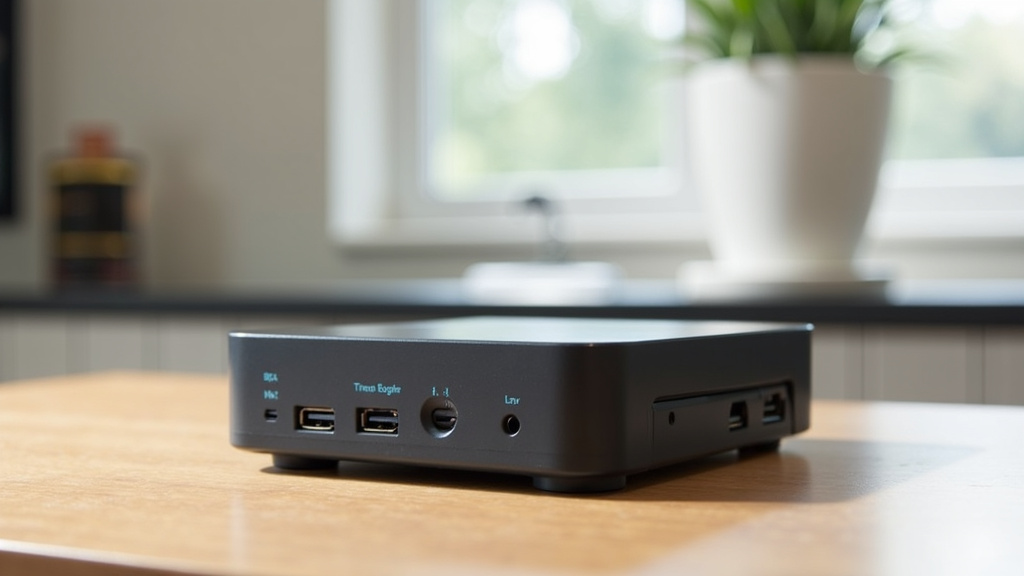
Check the number and type of USB ports. USB 3.0 or higher ports offer faster data transfer speeds, which is great for external drives or fast charging devices. You’ll likely want at least a couple of USB-A ports. Many mini PCs also include USB-C ports, which are versatile for data, video output, and power.
Most mini PCs have HDMI or DisplayPort outputs for connecting to monitors or TVs. Ensure the number of display outputs matches how many screens you plan to use. Some also have Ethernet ports for a wired internet connection, which is often more stable than Wi-Fi.
Wireless Connectivity: Staying Connected
Modern mini PCs usually come with built-in Wi-Fi and Bluetooth. Wi-Fi 6 (or 802.11ax) is the latest standard and offers faster speeds and better performance, especially in crowded wireless environments. Bluetooth is useful for connecting wireless keyboards, mice, headphones, and other accessories without extra dongles.
Graphics: For Your Visual Needs
The graphics processing unit (GPU) handles everything you see on your screen. For most everyday tasks, the integrated graphics that come built into the CPU are perfectly adequate.
If you plan on doing more graphics-intensive work, such as video editing, 3D rendering, or playing modern video games, you’ll want a mini PC with a dedicated graphics card. However, dedicated graphics are rare in typical mini PCs due to space and power constraints. For the average user, integrated graphics are more than enough (NVIDIA GeForce, Intel UHD Graphics).
Operating System: The Foundation
Most mini PCs come with either Windows or ChromeOS pre-installed. Some may come without an operating system, allowing you to install your preferred choice. Windows offers broad software compatibility, while ChromeOS is simpler and often found on more budget-friendly devices.
We found that if you’re accustomed to Windows and need to run specific Windows applications, a Windows-based mini PC is the straightforward choice. If your needs are primarily web-based, like browsing, streaming, and cloud-based productivity, a ChromeOS device could be a great, often more affordable, option.
What to Consider for Specific Uses
Your intended use will heavily influence your choices. Let’s look at a few common scenarios.
Home Theater PC (HTPC)
For a mini PC meant for your living room, focus on quiet operation and good video playback capabilities. A processor that can handle 4K video smoothly is a plus. Ensure it has an HDMI port and enough storage for your media library. Small form factor and low power consumption are also beneficial.
Home Office or Student PC
Here, you’ll want a good balance of processing power and RAM for multitasking. Enough storage for documents and applications is key. Reliable Wi-Fi and plenty of USB ports for peripherals like printers and webcams are important. Many experts suggest at least 8GB of RAM for this purpose.
Light Gaming or Creative Work
If you want to do a bit of light gaming or photo editing, look for a processor with decent integrated graphics or, if possible, a model with a discreet graphics card. More RAM (16GB is a good target) will help keep these applications running smoothly.
Quick Checklist for Your Mini PC Shopping Trip
Before you click “buy,” run through this quick checklist:
- Processor: Does it match your task needs (e.g., Intel Core i5/Ryzen 5 or better for general use)?
- RAM: Is 8GB the minimum, or do you need 16GB for smoother multitasking?
- Storage: Do you need a fast SSD? How much space (256GB, 512GB, 1TB) fits your files?
- Ports: Are there enough USB ports? Do you have the right video outputs (HDMI/DisplayPort)?
- Connectivity: Does it have modern Wi-Fi (like Wi-Fi 6) and Bluetooth?
- Operating System: Is it the OS you want (Windows, ChromeOS, or barebones)?
Conclusion
You’ve learned the key components that make a mini PC tick. By focusing on the processor, RAM, and storage, you can find a small computer that’s powerful enough for your daily tasks. Don’t forget to check connectivity options like ports and Wi-Fi. These details ensure your mini PC works smoothly with your existing devices and internet. Now, take a moment to think about your primary computer use. Armed with this knowledge, you’re ready to confidently choose a mini PC that fits your life perfectly. Start by listing your must-have features based on what you need your computer to do.
Frequently Asked Questions
Will a mini PC be powerful enough for my work?
For most common work tasks like email, web browsing, and document editing, a mini PC with at least an Intel Core i3 or AMD Ryzen 3 processor and 8GB of RAM is usually sufficient. If your work involves more demanding software, consider a model with an Intel Core i5/Ryzen 5 or better and 16GB of RAM for a smoother experience.
How much storage space do I really need in a mini PC?
If you primarily use cloud storage or stream content, 256GB SSD might be fine. However, for storing photos, videos, or a moderate number of applications, we found that 512GB or 1TB SSDs provide more comfortable room without constant storage worries.
Can I connect multiple monitors to a mini PC?
Many mini PCs support multiple displays, often through HDMI and DisplayPort outputs. You’ll need to check the specific model’s specifications for the number and type of video outputs it offers to ensure it meets your multi-monitor needs.
Is Wi-Fi 6 important for a mini PC?
Wi-Fi 6 offers faster speeds and a more stable connection, especially if you have many devices on your network. While not strictly necessary for all users, it’s a good feature to look for if you want the best wireless performance for streaming or online gaming.
What’s the difference between a mini PC and a NUC?
NUC (Next Unit of Computing) is a brand of mini PCs originally developed by Intel. While the terms are often used interchangeably, NUC specifically refers to Intel’s line, known for their small size and power. Many other manufacturers now produce similar small form factor PCs that are also considered mini PCs.


