How to Choose a Mini PC: A Step-by-Step Guide
On this page (7 sections)
Choosing the right mini PC for your needs is simpler than you might think. You should focus on identifying your primary use case and matching it with the PC’s processor, RAM, and storage capabilities. Don’t get overwhelmed by tiny boxes; just follow a few key steps.
These compact computers offer big power in a small package. They are perfect for tight spaces, saving desk room, or even serving as a media center. We found that understanding the core specifications helps avoid common pitfalls, ensuring you get a machine that actually fits your life.
- Figure out what you’ll use it for most.
- Check the processor (CPU) for performance.
- Look at memory (RAM) for multitasking.
- Decide on storage size and type.
- Consider ports and connectivity.
Ready to find your perfect little powerhouse? Let’s walk through exactly how to choose a mini PC, step by step, so you can make a smart purchase without the headache.
Picking Your Perfect Mini PC: A Smart Shopping Guide
Choosing a mini PC might seem daunting with all the specs. But don’t worry, we’ve broken it down. You just need to match your needs to the right hardware. Let’s figure out what you really need your tiny computer to do.
Step 1: Define Your Mini PC’s Job
Before you even look at processors, think about what you’ll use the mini PC for. This is the most important step. It’s like deciding if you need a bicycle or a truck. Both get you places, but they do different jobs.
Basic Tasks: Web Browsing, Email, and Office Work
If you just need a computer for browsing the web, checking emails, writing documents, or creating spreadsheets, you don’t need a super powerful machine. Most mini PCs can handle these tasks with ease. You’ll want something that feels responsive and doesn’t lag when you have a few tabs open.
Media Center: Streaming and Light Entertainment
Planning to use your mini PC as a home theater PC? You’ll want it to handle video playback smoothly. This means good graphics capabilities. For streaming services like Netflix, Hulu, or YouTube, you’ll need at least 1080p support. Some users might even want 4K playback. Ensure it can output to your TV or display without issues.
Productivity Hub: Multitasking and Creative Software
If you plan to run multiple applications at once, or use more demanding software like photo editors or light video editing tools, you’ll need more power. This means looking at higher-end processors and more RAM. Think of it like juggling: the more balls you’re juggling, the more skill and space you need.
Gaming: Casual or More Intense Play
Mini PCs aren’t typically designed for high-end gaming. However, some models can handle casual or older games. If gaming is a priority, you’ll need to pay close attention to the graphics processor (GPU) and ensure the CPU is robust enough. Many experts suggest that for serious gaming, a dedicated gaming desktop is often a better choice (PC Gamer).
Step 2: Understanding the Core Components
Now that you know what you need the mini PC to do, let’s look at the parts that make it happen. These are the processor (CPU), memory (RAM), and storage. Think of them as the brain, the short-term memory, and the filing cabinet of your computer.
Processor (CPU): The Brain of the Operation
The CPU is the computer’s brain. It handles all the calculations and instructions. For basic tasks, an Intel Celeron or Pentium, or an AMD Athlon, is usually fine. For more demanding work, you’ll want an Intel Core i3, i5, or i7, or an AMD Ryzen 3, 5, or 7. The higher the number, generally the more powerful the chip.
How Many Cores and What Speed?
CPUs have cores, which are like individual processing units. More cores mean the CPU can handle more tasks at once. For everyday use, 2 to 4 cores are often sufficient. Speeds are measured in gigahertz (GHz). A higher GHz usually means faster processing. Many experts recommend at least 2.5 GHz for a smooth experience (Intel).
Memory (RAM): For Smooth Multitasking
RAM, or Random Access Memory, is your computer’s short-term memory. It’s where programs store data they are actively using. More RAM means you can run more applications at the same time without your computer slowing down. It’s like having a bigger workbench for your projects.
How Much RAM Do You Need?
For light web browsing and email, 4GB of RAM might be enough. However, we found that 8GB of RAM is the sweet spot for most users. It allows for smoother multitasking, like having several browser tabs open while a music player runs in the background. If you plan on running demanding software or many programs at once, consider 16GB or even 32GB.
Storage: Where Your Files Live
Storage is where your operating system, programs, and all your files are kept. There are two main types: Hard Disk Drives (HDDs) and Solid State Drives (SSDs). SSDs are much faster than HDDs, making your computer boot up quicker and programs load faster.
SSD vs. HDD: Speed vs. Capacity
SSDs are highly recommended for your main drive because of their speed. They make a huge difference in how responsive your PC feels. HDDs are slower but offer more storage space for the money, making them good for storing large media files. Many mini PCs come with smaller SSDs for the operating system and programs, and may have an option to add an HDD later if needed.
How Much Storage Space?
For basic use, a 128GB SSD might suffice. However, programs are getting larger, and files can add up. We found that 256GB or 512GB SSDs offer a much better balance for most users. If you plan to store a lot of photos, videos, or games, you might need 1TB or more, or plan to use external storage.
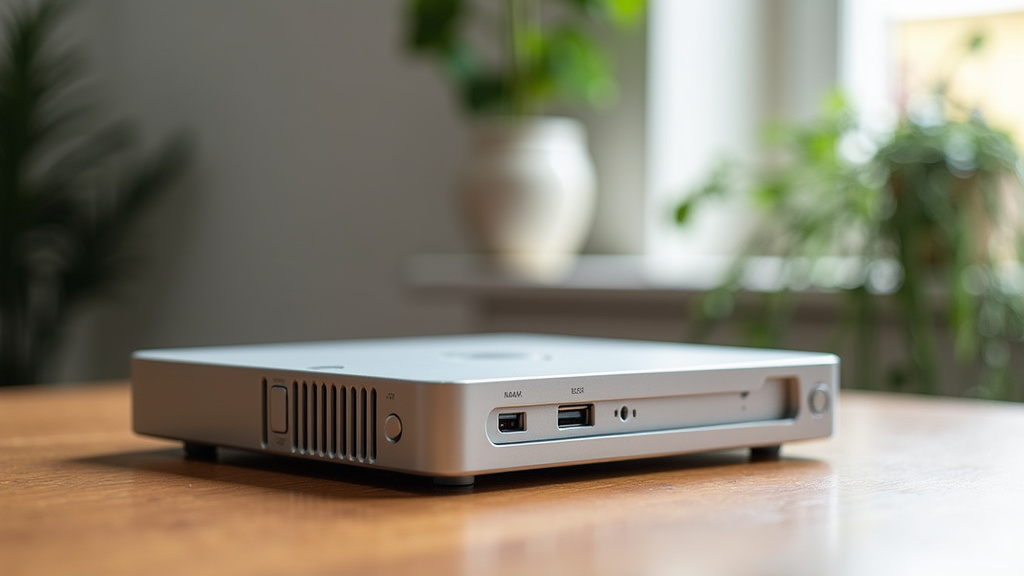
Step 3: Connectivity and Ports
Don’t forget about how your mini PC will connect to the rest of your world. The ports available are crucial for hooking up your monitor, keyboard, mouse, and other accessories. You want to ensure it has everything you need without needing a pile of adapters.
Display Outputs: Connecting to Your Screen
Most mini PCs will have HDMI ports for connecting to monitors and TVs. Some might also have DisplayPort, which is common on higher-end monitors. Check how many displays you want to connect. Some mini PCs support dual monitors, which can be a big productivity booster (PCMag).
USB Ports: For All Your Devices
You’ll need USB ports for your keyboard, mouse, external hard drives, webcams, and more. Look for a mix of USB 2.0 and USB 3.0 (or newer, like USB 3.1 or 3.2) ports. USB 3.0 ports are faster, which is great for transferring data to and from external drives.
Other Connectivity Options
Consider what else you might need. Does it have Wi-Fi and Bluetooth built-in? Most do, but it’s worth double-checking. Ethernet ports are good for a stable wired internet connection. Some might have audio jacks for speakers or headphones.
Step 4: Budget and Brand Considerations
Mini PCs come in a wide range of prices. Setting a budget upfront will help narrow your choices. Think about brands you trust. Some well-known manufacturers offer reliable mini PCs with good support.
Finding the Right Price Point
Cheaper mini PCs often use less powerful processors and have less RAM or storage. They are great for very basic tasks. Mid-range options offer a good balance for everyday productivity. High-end models can handle more demanding applications but come at a higher cost.
Reputation Matters
Brands like Intel (NUCs), HP, Dell, and Beelink are often cited for their quality and customer service. Doing a little research on reviews can help you find a reputable brand that suits your budget. Many tech sites provide comparisons of different mini PC brands and models.
Here’s a quick checklist to help you remember the key points:
- Confirm your primary use case (browsing, media, work, gaming).
- Check the processor (CPU) for the power you need.
- Ensure you have enough RAM (8GB recommended for most).
- Choose an SSD for fast storage and decide on the size.
- Verify the ports match your peripherals and displays.
- Set a budget and consider trusted brands.
Conclusion
You’ve now got the roadmap to picking your ideal mini PC. By understanding your needs first, then matching them with the right processor, RAM, and storage, you’re set. Don’t forget to check the ports for easy connections. This step-by-step approach ensures you avoid confusion and make a smart purchase. Your next step is to look at specific models that fit the criteria we’ve discussed and start enjoying your compact new computer.
Frequently Asked Questions
Can a mini PC really replace my desktop computer?
For many common tasks like web browsing, office work, and media streaming, a mini PC can absolutely replace a traditional desktop. If you require heavy-duty gaming or professional video editing, you might still need a more powerful desktop, but for everyday use, a mini PC offers great performance in a small package.
How do I know if I need more RAM in my mini PC?
If you find your mini PC slowing down when you have many browser tabs open, or when switching between different applications, you likely need more RAM. We found that 8GB is a good starting point, but 16GB or more is ideal for smoother multitasking and running more demanding programs.
What’s the difference between an SSD and an HDD in a mini PC?
SSDs (Solid State Drives) are much faster than HDDs (Hard Disk Drives). This means your mini PC will boot up quicker, applications will load faster, and your overall experience will feel more responsive with an SSD. HDDs offer more storage space for the price, making them good for large media libraries but not ideal as the primary drive.
Are mini PCs good for streaming movies and TV shows?
Yes, most mini PCs are excellent for this purpose. Ensure the model you choose supports at least 1080p resolution, and ideally 4K if your TV supports it. Checking the processor and graphics capabilities will help ensure smooth playback without any stuttering.
Do I need to buy a monitor, keyboard, and mouse separately for a mini PC?
Generally, yes. A mini PC is just the computer itself and doesn’t include peripherals like monitors, keyboards, or mice. You’ll need to purchase these separately or use ones you already own to connect to your mini PC.


