What Does Barebone Mean for a Mini PC? A Closer Look
On this page (3 sections)
Understanding Barebone Mini PCs
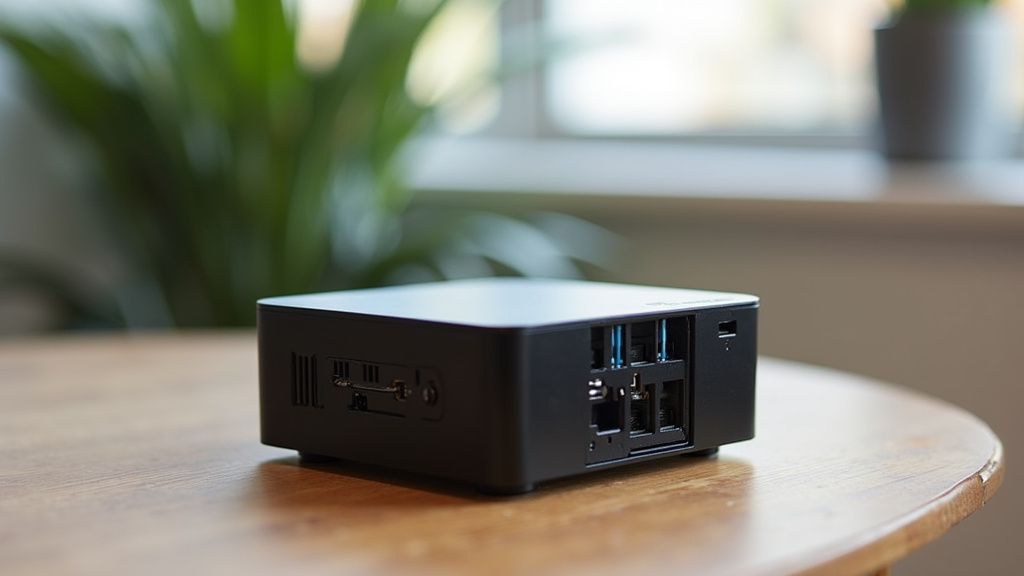
A barebone mini PC is a partially assembled computer. It comes with the case, motherboard, and sometimes a power supply. You add the rest yourself, like the processor, memory, and storage. This gives you a starting point to build a machine that fits your exact needs.
Why Choose a Barebone System?
Many people pick barebone mini PCs for two main reasons: saving money and having control. You only pay for what you need, no extra parts. You also choose every component, so the final build is uniquely yours. It’s like buying a frame for a house and picking all the furniture yourself.
Cost Efficiency That Makes Sense
Research shows that building your own computer can cut costs by 20-30% compared to buying a pre-built model with similar specs (TechSpot). You avoid paying for labor or bundled software you might not use. For budget shoppers, this can mean a more powerful machine for the same price. We found that many first-time builders appreciate this direct savings.
Tailoring Your Machine to Your Tasks
Customization is a big draw. Do you need more memory for video editing? Or a faster processor for gaming? With a barebone system, you pick the parts that match your workload. This avoids the “one-size-fits-all” problem. You get exactly what you want, nothing more and nothing less.
What Components Do You Need to Add?
A barebone kit typically includes the case and motherboard. Sometimes it has a basic power supply or integrated graphics. Here’s what you usually need to buy separately:
- Processor (CPU): The brain of the computer. Must be compatible with the motherboard socket.
- Memory (RAM): For multitasking. Check the maximum supported speed and capacity.
- Storage Drive: An SSD for speed or an HDD for more space at a lower cost.
- Operating System: Windows, Linux, or another OS. You’ll install this yourself.
Some kits might also require a separate graphics card if the motherboard doesn’t have integrated graphics. Always check the specific requirements before buying.
Choosing the Right Barebone Mini PC for You
Not all barebone systems are the same. Start by thinking about your primary use. Is it for a home office, media center, or light gaming? Your choice of processor should match that. For basic tasks, a mid-range CPU is fine. For demanding work, you might need a more powerful chip.
Size matters too. Mini PCs come in various form factors. Some are tiny and mount behind a monitor. Others are a bit larger but offer more expansion slots. Measure your space to ensure a good fit. Also, consider the ports. Do you need USB-C, HDMI, or Ethernet connections? List what you require beforehand.
A Simple Guide to Assembly
Building from a barebone kit is straightforward. Most people complete it in under an hour. First, gather your tools: usually just a screwdriver. Next, install the CPU into its socket on the motherboard. Then, add the RAM modules and storage drive. Finally, connect any power cables and close the case. It’s like putting together a LEGO set with clearer instructions.
If you feel unsure, many experts recommend watching a video guide specific to your model. We found that taking your time during the CPU installation is key. It’s a delicate part but not overly difficult. Remember to ground yourself to avoid static electricity damage.
Barebone Systems vs. Pre-Built: A Clear Comparison
Here’s how a barebone mini PC stacks up against a standard pre-built model.
| Feature | Barebone Mini PC | Pre-Built Mini PC |
|---|---|---|
| Initial Cost | Lower for the base kit. | Higher, includes all parts and assembly. |
| Customization | High – choose every component. | Low – fixed configurations. |
| Assembly Required | Yes, you build it yourself. | No, ready to use out of the box. |
| Upgrade Potential | Excellent, designed for easy upgrades. | Often limited by compact design. |
| Warranty Coverage | Varies by component; you manage each part. | Comprehensive for the whole system. |
This comparison helps you decide based on your comfort level and priorities. If you enjoy hands-on projects, barebone is rewarding. If you need simplicity, pre-built might be better.
Mistakes to Avoid on Your First Build
Even with research, beginners can slip up. One common error is buying incompatible parts. Always check the motherboard’s CPU socket and RAM type before purchasing. Another mistake is forgetting thermal paste. Some CPUs come with it pre-applied, but others don’t. Without it, your processor can overheat.
Overlooking the power supply is also risky. Ensure your PSU provides enough wattage for all components. A little extra headroom is wise for future upgrades. Lastly, don’t rush the build. Take breaks and double-check connections. Patience prevents costly errors.
Checklist Before You Purchase a Barebone Kit
Use this quick list to make sure you’re ready.
- Compatibility Check: Verify CPU socket, RAM type, and storage interfaces match your chosen components.
- Size Measurement: Confirm the mini PC’s dimensions fit your intended space.
- Port Count: Ensure there are enough USB, video, and network ports for your peripherals.
Conclusion
A barebone mini PC gives you a smart starting point for a custom build. You gain control over your costs and components, creating a machine that fits your exact needs. Remember to check compatibility, measure your space, and follow the purchase checklist. Assembly is straightforward if you take your time. Use this knowledge to find a kit that matches your primary use. Start by researching models that support your desired CPU and RAM, then gather the parts and build your tailored system.
Frequently Asked Questions
What exactly is included in a barebone mini PC kit?
A typical kit includes the case, motherboard, and often a power supply. It may also have integrated graphics or a basic cooling system. You will need to add the processor, memory, storage drive, and operating system yourself. Always verify the exact contents listed by the manufacturer before purchasing.
Is building a barebone mini PC difficult for a beginner?
Most people find the assembly process simple, often taking under an hour. The key steps involve seating the CPU, installing RAM, and connecting storage. Using a screwdriver and following a video guide for your model can make it easier. We found that patience during the initial component installation helps avoid mistakes.
Can I upgrade the components in my barebone mini PC later?
Yes, most barebone systems are designed for easy upgrades. You can typically replace the RAM, storage drive, or even the CPU with a compatible part. This flexibility lets you keep your system current as your needs change. Always check the motherboard’s maximum specifications before buying new components.
How does a barebone mini PC compare to a pre-built model in terms of warranty?
With a pre-built model, you get a single warranty covering the entire system. For a barebone build, you manage warranties for each individual component you install. This means you might need to contact different manufacturers for support. We suggest keeping all your receipts and warranty information organized.
What are the most common mistakes to avoid when buying a barebone kit?
The biggest mistake is buying incompatible parts, such as a CPU that doesn’t fit the motherboard socket. Forgetting to check the power supply’s wattage for your chosen components is another common error. Always verify compatibility and requirements before you purchase anything. This simple step prevents frustration and extra costs later.