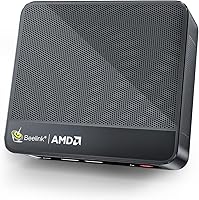
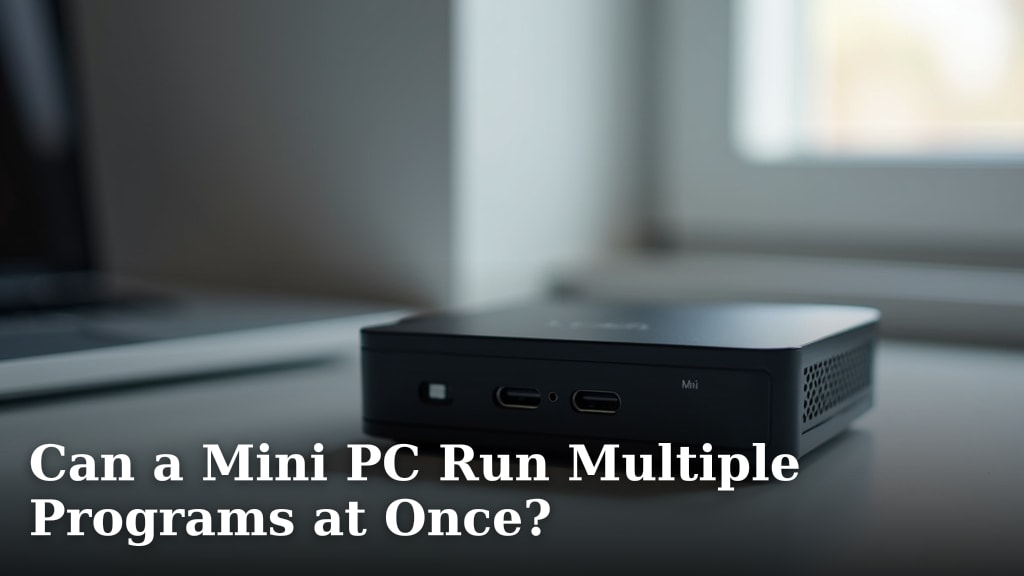
What Is a Good Use Case for a Mini PC? What to Know
On this page (4 sections)
A mini PC is a good use case when you need a powerful computer that takes up very little space. They are excellent for home media centers, light office work, and digital signage. You get a lot of performance in a tiny package.
Mini PCs offer surprising capability for their size. They can handle everyday tasks like browsing and streaming with ease. Many can even run less demanding games or serve as a dedicated device for specific applications. Think of them as compact powerhouses for specific needs.
- Mini PCs are small computers.
- They save space and are energy efficient.
- Great for media, office tasks, and digital displays.
- Can handle basic computing needs well.
- Consider one if space is limited.
Let’s break down the best scenarios for a mini PC and what you should look for before buying one.
When a Mini PC Makes the Most Sense for You
A mini PC can be a fantastic choice when you need a full computer experience without the bulky footprint. You get a lot of power in a tiny package. They are perfect for situations where space is at a premium or when you want a clean, minimalist setup.
Your Dedicated Home Media Hub
Imagine controlling all your movies, music, and photos from one central, hidden spot. That’s where a mini PC shines as a home theater PC (HTPC). You can connect it directly to your TV and use it to stream content from services like Netflix, Hulu, or YouTube. Many mini PCs can also play high-definition video smoothly, making them ideal for watching downloaded movies or home videos.
Instead of a tangle of wires and a large desktop tower, you’ll have a small box that can easily sit behind your TV or on a shelf. This creates a much cleaner and more organized entertainment center. You can also use it to store your digital media library, giving you quick access to all your favorite content.
Benefits for Your Media Center
- Space-Saving Design: Hides easily behind your TV or in a cabinet.
- Quiet Operation: Many models are designed to be very quiet, so they won’t distract from your movie.
- Energy Efficient: Uses less power than a traditional desktop, saving on electricity bills.
- Easy Connectivity: Usually comes with plenty of USB ports for external hard drives and HDMI for your TV.
Light Office Work and Productivity Tasks
Don’t let the small size fool you. Many mini PCs are more than capable of handling everyday office tasks. This includes things like browsing the web, checking email, using word processors, and working with spreadsheets. They can be a great alternative to a bulky desktop for a home office.
If you’re a student or a professional who primarily uses cloud-based applications or simple desktop programs, a mini PC can offer a surprisingly capable setup. They boot up quickly and handle multitasking for these kinds of workloads without much fuss. You might find it’s all you need for your daily productivity.
What to Expect for Office Use
For general office work, look for mini PCs with at least 8GB of RAM. This will ensure smooth multitasking between applications. A solid-state drive (SSD) is also highly recommended. SSDs make your computer boot up much faster and open programs in a flash. You’ll notice a big difference in responsiveness compared to older hard drives.
Digital Signage and Kiosk Applications
Businesses can find excellent uses for mini PCs too. They are perfect for powering digital signs in stores, restaurants, or waiting rooms. You can load marketing materials, menus, or information onto the mini PC and have it display on a monitor. Its small size means it can be mounted behind a screen or tucked away discreetly.
Similarly, mini PCs are often used for self-service kiosks. Think of those ordering stations at fast-food restaurants or information points in public spaces. The reliability and small footprint of a mini PC make it a practical choice for these continuous-use applications.
Why Mini PCs Work for Businesses
- Compact Form Factor: Easy to install and hide in commercial settings.
- Low Power Consumption: Runs for long hours without significant energy drain.
- Reliability: Many are built for continuous operation, making them dependable.
- Cost-Effective: Often cheaper than a full-sized desktop for basic display needs.
What to Consider Before You Buy a Mini PC
While mini PCs offer a lot of advantages, it’s important to know what you’re getting into. Not all mini PCs are created equal, and understanding your needs will help you pick the right one. Think of it like buying a tool; you need the right one for the job.
Your Performance Needs: What Will You Actually Do?
The biggest factor influencing your mini PC choice is what you plan to use it for. Are you just browsing the web and checking emails? Or do you plan on doing some light gaming or video editing? This will determine the kind of processor (CPU), RAM, and storage you’ll need.
Most basic mini PCs come with entry-level processors like Intel Celeron or Pentium. These are great for everyday tasks. If you need a bit more power for multitasking or running slightly more demanding software, look for models with Intel Core i3, i5, or i7 processors. AMD Ryzen processors are also a strong option, offering good performance.
RAM: How Much Do You Need?
RAM, or Random Access Memory, is like your computer’s short-term memory. It helps your PC juggle multiple tasks at once. For basic web browsing and email, 4GB of RAM might suffice, but it can feel sluggish.
We found that 8GB of RAM is the sweet spot for most users. It provides a smooth experience for everyday computing and multitasking. If you plan on running more demanding applications, doing some light photo editing, or keeping many browser tabs open, consider 16GB or more. More RAM means your computer can handle more without slowing down.
Storage: SSD vs. HDD
Storage is where your files, programs, and operating system live. There are two main types: Solid State Drives (SSDs) and Hard Disk Drives (HDDs).
Solid State Drives (SSDs)
SSDs are much faster than traditional HDDs. They have no moving parts, which makes them more durable and quieter. They significantly reduce boot times and program loading times. Most mini PCs these days come with SSDs, and we highly recommend them.
Hard Disk Drives (HDDs)
HDDs are older technology and are slower. However, they typically offer more storage space for a lower price. If you need to store a very large media library, you might consider a mini PC that has both an SSD for the operating system and an HDD for bulk storage, though this is less common in the smallest form factors.
For a mini PC, an SSD is almost always the better choice for your operating system and frequently used programs. A 128GB or 256GB SSD is often enough for basic use. If you plan to install many programs or games, you might want 512GB or more.
Connectivity: Ports and Wireless Options
Think about what you need to plug into your mini PC. Most mini PCs come with a good selection of ports, but it’s worth checking:
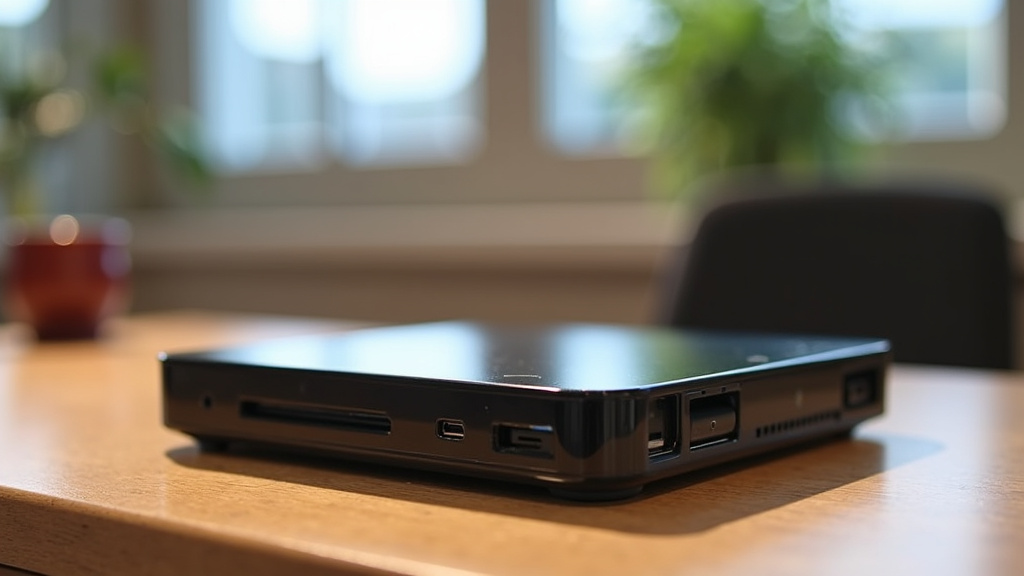
- USB Ports: You’ll likely need these for keyboards, mice, external drives, and other peripherals. Look for a mix of USB 2.0 and faster USB 3.0 (or USB-C) ports.
- HDMI or DisplayPort: Essential for connecting to your monitor or TV. Many mini PCs have multiple video outputs, allowing you to run dual monitors.
- Ethernet Port: For a wired internet connection, which is generally more stable than Wi-Fi.
- Wi-Fi and Bluetooth: Most mini PCs include built-in Wi-Fi and Bluetooth, but confirm the version for compatibility with your other devices.
Ensuring you have the right ports will save you from needing extra adapters or hubs later on.
Operating System Considerations
Most mini PCs come with Windows pre-installed. This is familiar and works well for most users. However, you might also find mini PCs designed for other uses.
Some mini PCs are sold without an operating system (often called “barebones” units). This allows you to install your preferred OS, such as Linux, or save money if you already have a Windows license. There are also mini PCs specifically designed to run Linux or ChromeOS. Consider which operating system best fits your workflow and technical comfort level.
Your Mini PC Checklist
Before you make your final decision, run through this quick checklist:
- What will I use it for? (Media, office, browsing, specific app?)
- How much RAM do I need? (4GB minimum, 8GB recommended, 16GB+ for demanding tasks)
- What kind of storage is best? (SSD is highly recommended for speed)
- Are there enough ports? (Check USB, HDMI, Ethernet for your needs)
- Does it have the right operating system? (Windows, Linux, or barebones?)
- Is it quiet enough for its intended location? (Important for living rooms or quiet offices)
Conclusion
You’ve learned that a mini PC is a smart choice for saving space without sacrificing capability. Whether you’re building a clutter-free media center, setting up a compact home office, or deploying digital signage, these small computers deliver. We found that focusing on your specific tasks helps you choose the right processor, RAM, and storage. Now, take a moment to think about your primary need for a mini PC. Armed with this knowledge, you’re ready to find the perfect mini PC that fits your space and your life.
Frequently Asked Questions
Can a mini PC really replace my desktop computer?
For many everyday tasks like web browsing, email, and basic productivity, yes, a mini PC can absolutely replace your desktop. We found that models with at least 8GB of RAM and an SSD provide a smooth experience. However, if you do heavy video editing or play demanding games, a full-sized desktop might still be better.
Are mini PCs noisy?
Most modern mini PCs are designed to be very quiet, especially compared to older desktop towers. Their smaller size often means smaller fans, or sometimes even fanless designs. We recommend checking reviews for specific models if quiet operation is a top priority for you, particularly for home theater use.
How much storage do I really need on a mini PC?
For general use, like streaming and basic documents, a 128GB or 256GB SSD is often enough. If you plan to store a lot of media files or install many applications and games, you’ll want to look for 512GB or larger. We suggest prioritizing an SSD for your operating system for speed.
Can I connect multiple monitors to a mini PC?
Yes, many mini PCs come equipped with multiple video outputs, such as HDMI and DisplayPort. This allows you to easily connect two or even more monitors. We found this to be a great feature for productivity, letting you spread out your work across different screens.
Are mini PCs good for gaming?
For light gaming, casual titles, or older games, some mini PCs can perform quite well, especially those with more powerful processors and dedicated graphics. However, if you’re looking to play the latest AAA games at high settings, a mini PC is generally not the best choice. Their small size limits cooling and power for high-end gaming components.