How Many Monitors Can a Mini PC Support?
On this page (5 sections)
A Mini PC can support multiple monitors, typically anywhere from two to four displays. The exact number depends on the Mini PC’s graphics capabilities and the ports it offers. Most modern Mini PCs are designed for basic multitasking, making them great for running more than one screen.
You might be wondering if your small desktop can handle a multi-monitor setup. Many Mini PCs come with a variety of video outputs like HDMI, DisplayPort, or even USB-C with DisplayPort Alt Mode. We found that checking the specific model’s specifications is key to knowing its display limits.
- Most Mini PCs support at least 2 monitors.
- Some can handle up to 4 displays.
- Check the PC’s ports (HDMI, DisplayPort, USB-C).
- Graphics power also plays a role.
Let’s break down what you need to consider to get your Mini PC hooked up to multiple screens. To understand its display limits, learn what is inside a mini PC.
Understanding Your Mini PC’s Multi-Monitor Potential
So, you’ve got a neat little Mini PC and you’re thinking about adding another screen or two. Can it handle it? You’re probably wondering how many monitors your compact powerhouse can actually drive. The good news is, most Mini PCs are surprisingly capable of supporting multiple displays. It’s not quite like a desktop tower with dedicated graphics cards, but for everyday tasks, browsing, and even some light creative work, it’s often more than enough.
The main factors determining this are the built-in graphics processing power and the types of video ports available on the Mini PC itself. Think of it like this: the graphics chip is the engine, and the ports are the roads. You need both to be up for the job of sending a picture to more than one screen at a time.
How Graphics Power Affects Monitor Support
The graphics chip, often integrated into the CPU (like Intel’s integrated graphics or AMD’s APUs), does the heavy lifting for displaying images. More powerful integrated graphics can handle higher resolutions and more monitors simultaneously. Older or very basic Mini PCs might struggle with more than one external display, especially if you’re pushing high resolutions like 4K.
Integrated Graphics vs. Dedicated Graphics
Most Mini PCs rely on integrated graphics. This means the graphics processing is part of the main computer chip. It shares system memory (RAM) with the CPU. This is efficient for general computing, but it has limits. Dedicated graphics cards, found in larger gaming or workstation PCs, have their own memory and much more processing power. They are built for demanding visual tasks and can easily power many monitors.
For a Mini PC, you’re generally looking at integrated graphics. We’ve seen that modern integrated graphics, especially from Intel (like Iris Xe) and AMD (like Radeon Graphics), are quite good. They can often support two or even three 4K displays at 60Hz, which is fantastic for productivity.
Understanding Graphics Capabilities
When you’re looking at a Mini PC, check its specifications for the graphics model. For instance, Intel’s Core i5 or i7 processors often come with Iris Xe graphics, which are a step up from older Intel UHD graphics. Similarly, AMD Ryzen processors with Radeon graphics are known for good integrated performance. We found that looking up benchmarks for that specific graphics model can give you a good idea of its capabilities.
Don’t expect to play the latest 3D games on four high-resolution monitors with most Mini PCs. But for web browsing, spreadsheets, video playback, and office applications, the graphics are usually more than sufficient. It’s all about matching the PC’s capabilities to your intended use.
Navigating Your Mini PC’s Ports for Multi-Monitor Setups
The physical ports on your Mini PC are your direct connection to external monitors. The type and number of these ports are just as important as the graphics chip. You need the right cables and the right ports to make your multi-monitor dream a reality.
Common Video Ports You’ll Find
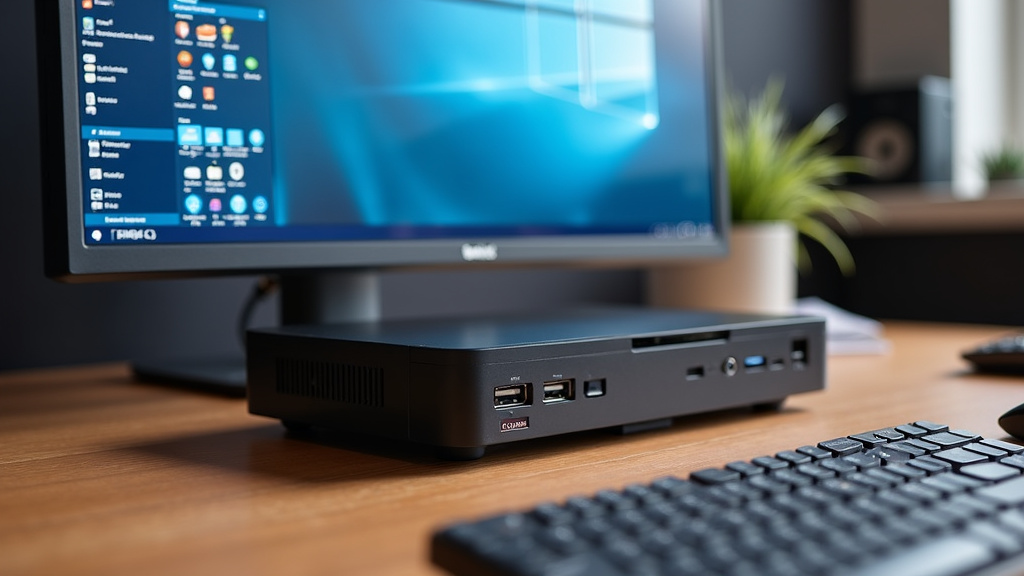
You’ll typically see a few standard video output ports on Mini PCs:
- HDMI: This is the most common. It’s great for most monitors and TVs. It supports audio and video. Many Mini PCs have at least one HDMI port.
- DisplayPort (DP): Often found on higher-end or business-oriented Mini PCs. DisplayPort is known for supporting higher resolutions and refresh rates, and it’s excellent for multi-monitor setups, especially when using daisy-chaining (more on that later).
- USB-C (with DisplayPort Alt
Conclusion
So, you’ve learned that your Mini PC can likely support multiple monitors. The number of displays you can connect depends mainly on its integrated graphics power and the available video ports. Modern Mini PCs often handle two to four screens well, especially for everyday tasks. Always check your specific model’s technical details before buying new hardware. This ensures you get the most out of your compact setup. Your next step is to verify your Mini PC’s port types and graphics model. Then, you can confidently plan your multi-monitor arrangement.
Frequently Asked Questions
How do I know if my Mini PC can support 3 monitors?
You’ll need to check the specifications for your particular Mini PC model. Look for details on its integrated graphics (like Intel Iris Xe or AMD Radeon) and the number and types of video outputs (HDMI, DisplayPort, USB-C). Most modern Mini PCs with capable graphics can support three displays.
Can I use a USB-C hub to add more monitors?
Yes, you often can. If your Mini PC has a USB-C port that supports DisplayPort Alternate Mode (DP Alt Mode), you can connect a compatible USB-C hub or dock. This hub can then provide multiple video outputs, allowing you to connect more monitors. Ensure the hub is rated for the resolutions and refresh rates you need.
Will connecting multiple monitors slow down my Mini PC?
Potentially, yes. Running multiple displays requires more processing power from your Mini PC’s graphics. For basic tasks like web browsing and document editing, the impact is usually minimal. However, for demanding applications or gaming, you might notice a performance decrease on each monitor.
What’s the difference between HDMI and DisplayPort for multiple monitors?
DisplayPort generally offers more bandwidth than HDMI, which can be better for higher resolutions and refresh rates, especially in multi-monitor setups. Some DisplayPort versions also support daisy-chaining, where you can connect multiple monitors in a series from a single port. HDMI is still very capable and common, often supporting two displays on its own.
Can I connect monitors with different resolutions to my Mini PC?
Yes, you can typically mix and match monitors with different resolutions. Your Mini PC will drive each display according to its capabilities and the port’s specifications. For example, you could connect a 4K monitor and a 1080p monitor simultaneously. Just ensure the combined output doesn’t exceed your Mini PC’s overall graphics limit.