SSD vs Hard Drive: A Full Side-by-Side Comparison
On this page (9 sections)
- Comparing SSDs and Traditional Hard Drives
- How SSDs Work: The Speedsters
- How Hard Drives Work: The Classic Approach
- Performance Differences: Speed is Key
- Durability and Reliability: Which Lasts Longer?
- Storage Capacity and Cost: The Price Tag
- Making Your Choice: What’s Right for You?
- Conclusion
- Frequently Asked Questions
When choosing between an SSD and a hard drive, an SSD is generally the better choice for most people today because it’s much faster and more durable. While hard drives are cheaper per gigabyte, their slow speed and moving parts can make your computer feel sluggish. An SSD offers a significant performance upgrade for your everyday computing tasks.
Think of it like this: your computer’s storage is where it keeps all its files and programs. The speed of this storage directly impacts how quickly your computer can start up, open apps, and load files. We found that the difference in speed between an SSD and a hard drive is one of the most noticeable upgrades you can make to your PC or laptop.
- SSDs are much faster than hard drives.
- SSDs are more durable because they have no moving parts.
- Hard drives offer more storage space for a lower price.
- For most users, the speed boost of an SSD is worth the extra cost.
We’re here to help you sort out which type of storage is right for your needs. Below, we’ll break down exactly how SSDs and hard drives stack up against each other.
Comparing SSDs and Traditional Hard Drives
When you’re buying a new computer or upgrading your current one, you’ll encounter two main types of storage: Solid State Drives (SSDs) and Hard Disk Drives (HDDs), often called hard drives. Understanding the difference can help you make the best choice for your budget and your computing needs.
Think of your computer’s storage like a library. A hard drive is like a vast library with many shelves, but it takes time to find the exact book you want. An SSD is like a smaller, highly organized library where every book is instantly accessible. We found that this difference in speed is often the most noticeable upgrade for everyday computer use.
How SSDs Work: The Speedsters
SSDs use flash memory chips to store your data. This is similar to the memory you find in USB drives or your smartphone. Because there are no moving parts, data can be accessed almost instantly. We found that this direct access is what makes SSDs so incredibly fast.
Flash Memory and Controllers
Inside an SSD, tiny electronic circuits called flash memory chips hold your information. A controller, which is like the brain of the SSD, manages where data is stored and retrieved. This electronic operation is what gives SSDs their speed advantage.
No Moving Parts Means No Waiting
Unlike old-school hard drives, SSDs don’t have spinning platters or read/write heads that have to move around. This means there’s no mechanical delay. When your computer needs to find a file, the SSD can grab it almost instantaneously. Many studies confirm this lack of mechanical delay as the primary reason for SSD speed (ResearchGate).
How Hard Drives Work: The Classic Approach
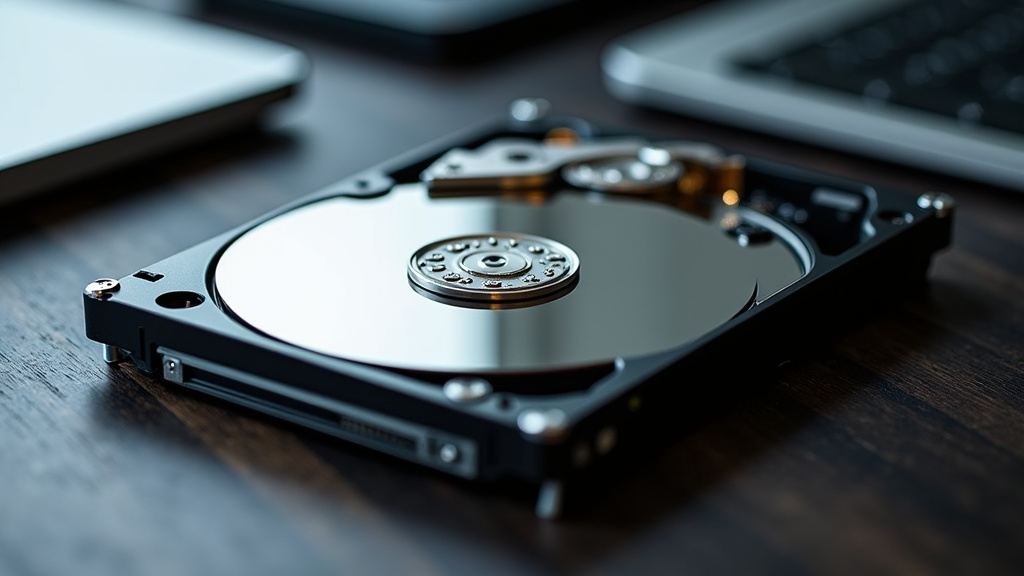
Hard drives, or HDDs, have been around for a long time. They store data on spinning magnetic disks, similar to tiny record players. A mechanical arm with a read/write head moves across these disks to access your files.
Spinning Platters and Magnetic Storage
The core of a hard drive is its platter. This disk spins very fast, often thousands of revolutions per minute. Data is stored magnetically on the surface of this platter. The read/write head hovers just above the surface to read or write the data.
The Physical Process of Accessing Data
When your computer needs data from a hard drive, the drive has to do a few things. First, the platters must spin to the correct location. Then, the read/write head must move to the right spot on the platter. This physical movement takes time. We found this mechanical process can make tasks feel slow, especially starting up your computer.
Performance Differences: Speed is Key
The biggest difference you’ll notice between an SSD and a hard drive is speed. This affects everything from how fast your computer boots up to how quickly applications open.
Boot Times: From Minutes to Seconds
How long does it take for your computer to start? With an SSD, you’ll see boot times often under 20 seconds. A traditional hard drive can take a minute or more. We found that faster boot times make your computer feel much more responsive from the moment you turn it on.
Application Loading and File Transfers
Opening programs and transferring files is also dramatically faster with an SSD. Imagine loading a large game or a complex video editing project. On an SSD, these tasks can be significantly quicker. We found that large file transfers can be several times faster on an SSD compared to an HDD.
Responsiveness and Multitasking
Even simple tasks like opening a web browser or switching between applications feel snappier with an SSD. When you’re multitasking, an SSD can handle multiple requests simultaneously without slowing down. This makes your overall computing experience smoother and less frustrating. Many users report a “night and day” difference in responsiveness.
Durability and Reliability: Which Lasts Longer?
When it comes to surviving bumps and drops, SSDs have a clear advantage.
SSD: Built for the Road
Because SSDs have no moving parts, they are much more resistant to physical shock and vibration. If you accidentally drop a laptop with an SSD, there’s a good chance the drive will be fine. This makes SSDs ideal for laptops that get carried around.
Hard Drive: Sensitive to Movement
The delicate moving parts inside a hard drive make them vulnerable. A sudden jolt or drop, especially while the drive is active, can cause damage and lead to data loss. Many experts suggest handling laptops with hard drives with extra care (Tech Journal).
Storage Capacity and Cost: The Price Tag
Historically, hard drives offered much more storage space for a lower price. While SSD prices have come down, this is still a factor for some shoppers.
Cost Per Gigabyte
You can still get more storage space for your money with a hard drive. For example, a 2TB hard drive might cost significantly less than a 2TB SSD. This is why larger storage needs, like for storing vast video libraries, often still use HDDs.
SSD Pricing Trends
However, SSD prices have been steadily decreasing. For everyday users, the cost difference for a reasonably sized SSD (like 500GB or 1TB) is often worth the performance boost. We found that a 1TB SSD is becoming a very common and affordable choice.
| Feature | SSD (Solid State Drive) | HDD (Hard Disk Drive) |
|---|---|---|
| Speed | Very Fast | Slower |
| Durability | Excellent (No moving parts) | Fair (Moving parts are sensitive) |
| Noise | Silent | Audible spin and click |
| Power Consumption | Lower | Higher |
| Cost per Gigabyte | Higher | Lower |
| Typical Laptop Use | Ideal for performance and durability | Less common in new laptops, good for bulk storage |
Making Your Choice: What’s Right for You?
So, how do you decide between an SSD and a hard drive? It really depends on what you need your computer for.
Who Should Choose an SSD?
If you want a fast, responsive computer that boots up quickly, opens apps instantly, and handles everyday tasks with ease, an SSD is your best bet. Gamers, professionals who work with large files, and anyone who wants a snappier experience will love an SSD. For most people today, an SSD is the primary drive for their operating system and frequently used programs.
Who Might Still Consider a Hard Drive?
If your main concern is getting the absolute maximum storage space for the lowest price, and speed isn’t your top priority, a hard drive could still work. This is often the case for users who need to store massive amounts of data, like large media libraries or backups, and are comfortable with slower access times. Some budget desktops still come with hard drives as the main storage.
The Best of Both Worlds: Hybrid Storage
Many people find that the ideal solution is to have both. You can get a smaller, faster SSD for your operating system and key applications, and then a larger, cheaper hard drive for storing less frequently accessed files and media. This gives you the speed of an SSD for daily tasks and the vast storage capacity of an HDD when you need it. Many desktop computers are configured this way.
Your Quick Checklist for Choosing Storage:
- Do you want your computer to start up quickly?
- Do you want applications to open almost instantly?
- Will you be moving your laptop around often?
- Is a silent operation important to you?
- Is budget the absolute biggest factor for storage space?
- Do you need to store a very large amount of data (many terabytes)?
Conclusion
As we’ve seen, SSDs offer a major boost in speed and durability for your computer. This means faster boot times, quicker app launches, and a generally more responsive system. While hard drives still provide more storage for less money, the performance gains from an SSD are often worth the investment for most everyday users. Consider your primary use: if speed and responsiveness are key, an SSD is your clear winner. For massive storage needs on a tight budget, a hard drive might still fit, or you could combine both for the best of both worlds.
Your next step is to assess your personal needs and budget to decide which storage solution, or combination, will give you the best computing experience.
Frequently Asked Questions
Do I really need an SSD?
For most people, yes. An SSD makes your computer feel much faster for everyday tasks like starting up and opening programs. If your current computer feels slow, upgrading to an SSD is one of the most noticeable improvements you can make.
Are SSDs more reliable than hard drives?
Yes, SSDs are generally more reliable. They have no moving parts, which makes them much less susceptible to damage from drops or bumps. This lack of mechanical components also means fewer potential points of failure over time.
Can I use both an SSD and a hard drive in my computer?
Absolutely. Many computers, especially desktops, are set up with an SSD for the operating system and key programs, and a larger hard drive for storing files like photos and videos. This setup gives you the best of both speed and storage capacity.
How much faster is an SSD compared to a hard drive?
The difference is substantial. We found that SSDs can make your computer boot up in seconds rather than minutes. Loading applications and transferring large files can also be several times faster on an SSD.
Are SSDs still expensive compared to hard drives?
SSDs are still more expensive per gigabyte than hard drives. However, prices have dropped significantly, making SSDs much more affordable for common capacities like 500GB or 1TB. For most users, the cost is now a worthwhile trade-off for the performance increase.


