Can You Replace a Logitech MK270 USB Receiver?
Sometimes you can replace a Logitech MK270 USB receiver, but the replacement must be compatible with your keyboard and mouse. Check the receiver type and pairing support before buying, since a receiver that fits a USB port may still not connect.
On this page (7 sections)
- Can you replace a Logitech MK270 USB receiver?
- How do you identify the MK270 receiver?
- What should you check before buying a replacement receiver?
- How do you pair a replacement receiver?
- Is a replacement receiver worth buying?
- What if the replacement receiver doesn't work?
- Should you replace the receiver or the whole MK270 set?
Sometimes you can replace a Logitech MK270 USB receiver, but the replacement must match the set and support pairing. A receiver's USB shape only tells you that it can plug into a port, not that it can connect to your keyboard and mouse.
Before buying, identify the original receiver if possible, check the replacement's compatibility and pairing instructions, and consider whether replacing the whole combo is simpler. The Logitech MK270 keyboard and mouse guide covers which computers and ports the set works with.
Can you replace a Logitech MK270 USB receiver?
Yes, in some cases, if the replacement receiver is compatible with your MK270 and supports pairing. Confirm those details for the exact receiver before buying; not every Logitech USB receiver works with every Logitech wireless device.
A replacement isn't guaranteed to restore both the keyboard and mouse. Check whether the receiver can pair with both, then follow the pairing steps for your set.
If the seller or manufacturer can't confirm compatibility, contact Logitech support before ordering.
If a receiver is included inside a new wireless combo, it is intended for that combo. Logitech says a wireless keyboard or combo receiver may be inside the mouse under its battery cover, or attached within the packaging.
Check both places before assuming it is lost.
How do you identify the MK270 receiver?
Start by checking the receiver you already have and the MK270 set it came with. Look for identifying marks on the receiver and packaging, and keep the keyboard and mouse model information handy when asking Logitech or a seller about compatibility.
A receiver that looks similar may use a different wireless system. Don't rely on brand, size, or USB fit alone.
Ask whether the exact receiver supports your MK270 and whether it can pair with both pieces of the combo.
If the receiver is still plugged into an old computer, remove it and try it with the computer you use now. Check that the USB port is working, too.
The MK270 connects through a USB receiver, so a loose or faulty port can look like a pairing problem.
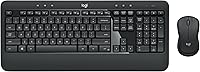
The MK270 is a full-size wireless keyboard and mouse combo with a single included USB-A nano receiver. It has low-profile keys, a number pad, and 8 multimedia hotkeys.
If you're replacing a receiver for this set, verify that the replacement is meant to work with the MK270 rather than assuming another Logitech receiver will pair.
What should you check before buying a replacement receiver?
Confirm the model match, connection type, and pairing support before ordering. If any of these details are unclear, ask Logitech support or the seller to verify compatibility with your exact MK270 set.
Check these points:
- Does the replacement specifically support your MK270?
- Does it use the same wireless connection as your original receiver?
- Can it pair with both the MK270 keyboard and mouse?
- Are pairing instructions available for your set?
- Can you return it if it doesn't connect?
Avoid listings that promise only a “Logitech receiver” without naming supported models. A similar appearance or a USB-A connector doesn't prove it will work.
How do you pair a replacement receiver?
Use Logitech's instructions for the specific receiver and MK270 set. Pairing steps depend on the receiver and device, so follow the documented process rather than trying random button combinations.
Start with fresh batteries in the keyboard and mouse, and connect the receiver directly to a working USB port. Keep the devices close to the computer during setup, then test typing and mouse movement separately.
If one device pairs and the other does not, check the receiver's compatibility with both. If neither connects after following the instructions, confirm the receiver model and contact Logitech support before spending more on another one.
Is a replacement receiver worth buying?
A compatible receiver may be the practical choice when the MK270 keyboard and mouse still work. If you can't confirm a match or the pairing process fails, replacing the combo may be easier than trying several receivers.
The Logitech MK270 Full Size Wireless Keyboard comes with a receiver for its keyboard and mouse, so it may suit someone who wants the same basic combo again. Compare it with the Logitech MK270 combo review before deciding whether to replace the whole set.
The MK470 is a separate wireless combo with a compact keyboard, number pad, and USB nano receiver. It isn't an MK270 replacement receiver; consider it only if you want a different combo and are ready to use the receiver included with that set.
The MK345 is another full-size combo, with a palm rest and a right-handed mouse. Like the MK470, it's an alternative set, not a receiver that restores an MK270.
If only the MK270 mouse has failed, a replacement mouse may be another route. Read whether you can replace the mouse in a Logitech MK270 set; if the whole combo is due for a change, compare the Logitech MK270 vs MK320.
What if the replacement receiver doesn't work?
Stop and verify compatibility before trying another receiver. Check that the receiver is fully connected, the USB port works, the batteries are installed correctly, and you followed the pairing instructions for the exact receiver.
Test the set on another working USB port if available. If it still won't connect, ask Logitech support to confirm whether that receiver works with your MK270 and supports both devices.
Keep any packaging or order details so you can return an incompatible part.
If you decide to replace your setup, browse our keyboards and mice buying guide for options beyond wireless combos. For another computer connection question, see whether Apple makes a keyboard with a touchpad or compare a Kensington trackball expert mouse with a standard mouse.
Readers choosing a different typing setup can also review the best ergonomic split keyboard.
Should you replace the receiver or the whole MK270 set?
Replace the receiver only when you can confirm it matches the MK270 and can pair with both devices. If compatibility remains uncertain, a complete combo with its own receiver may be the clearer option.
Check the packaging and mouse battery compartment for the original receiver first. If it's missing, ask Logitech to confirm a replacement before buying.
Choose a whole new combo if you prefer a fresh set or can't guarantee receiver compatibility.
Frequently asked questions
Can you pair a new receiver with a Logitech MK270?
Sometimes, but only if the receiver and MK270 support the same connection and pairing method. A receiver that plugs into USB is not automatically compatible.
Check the receiver type and Logitech's pairing instructions for your exact set before buying, and confirm that both the keyboard and mouse can connect.
Does any Logitech USB receiver work with the MK270?
No. Logitech receivers can use different wireless systems, and a USB plug alone does not confirm compatibility.
Match the receiver to the MK270 set and its pairing support.
If you can't confirm both, ask Logitech support before buying a replacement or consider replacing the combo.
Can one replacement receiver connect both the MK270 keyboard and mouse?
It depends on whether the receiver is compatible with the MK270 and supports pairing both devices. Confirm that detail before ordering; a receiver that pairs with one device may not restore the full combo.
Test the keyboard and mouse separately after pairing.
Where should I look for the original MK270 receiver?
Check the USB ports on the computer, then look around the desk, laptop bag, and the MK270's packaging. Logitech notes that combo receivers may be inside the mouse under its battery cover or attached within the packaging, so inspect those places if the set is new or recently moved.