Logitech MK270: Which Computers and Ports Does It Work With?
The Logitech MK270 keyboard and mouse use one USB-A nano receiver and are designed for Windows computers. Check that your computer has a free USB-A port and runs a compatible Windows version before buying.
On this page (6 sections)
The Logitech MK270 keyboard and mouse work with Windows computers that have an available USB-A port for the included nano receiver. The set uses a 2.4 GHz wireless connection, not Bluetooth, so check your computer's operating system and ports before you buy.
If you're considering the K400, check whether the Logitech K400 uses Bluetooth.
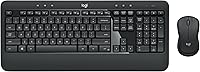
The MK270 is a wireless keyboard and mouse combo with a single receiver. If you are choosing accessories for a small computer, first check whether a mini PC comes with a keyboard and mouse.
Which computers work with the Logitech MK270 keyboard and mouse?
The MK270 is specified for Windows computers, including laptops and PCs. Its receiver connects to a USB-A port, so the computer also needs a free port of that type.
The product information identifies Windows as its compatible operating system family and Windows 10 as the minimum required version. If you use another operating system, confirm compatibility with Logitech before relying on this combo.
A mini PC can use the MK270 if it meets those requirements. For a wired alternative that avoids a wireless receiver, see our wired keyboard buying guide.
What port does the MK270 receiver need?
The included nano receiver needs one USB-A port. Plug it into the computer, then use the keyboard and mouse through the receiver's 2.4 GHz wireless connection.
The MK270 does not use Bluetooth for this connection. A computer with USB-C ports only needs a compatible USB-C to USB-A adapter or hub with an open USB-A port.
If your USB ports are already in use, check whether a hub will fit your setup. Keep the receiver accessible so you can remove it when moving the computer or keyboard set.
Does the MK270 work with Mac, ChromeOS or Linux?
The listed compatibility is for Windows, so support for Mac, ChromeOS or Linux should not be assumed. Check Logitech's current support information for your operating system and version before ordering.
A matching USB-A port solves only the physical connection. It does not confirm that every keyboard key or mouse function will work with an unsupported operating system.
If you want a similar Logitech combo whose product information names multiple systems, consider the MK345. Its stated compatibility includes Windows, macOS and ChromeOS, and it also uses a USB nano receiver.
How do you set up the MK270?
Connect the receiver to a USB-A port, then switch on the keyboard and mouse. The combo is designed for plug-and-play use, with the receiver handling the wireless connection.
The receiver is small, so check the packaging and the mouse's battery compartment if you cannot find it. For more context on the set's features, read our Logitech MK270 combo review.
If the receiver is missing or damaged, see how to replace a Logitech MK270 USB receiver. If the keyboard still works but the mouse does not, our guide to a Logitech MK270 replacement mouse covers that question.
Which Logitech combo fits your computer setup?
Choose based on the operating system, port type and features you need. The MK270 is the Windows-focused option here; the MK470 and MK345 offer different layouts and compatibility details.
The MK470 is a compact keyboard and mouse combo designed for Windows. Its USB nano receiver and compact keyboard may suit a small desk, but check the receiver port and operating system before choosing it.
The MK270 includes a full-size keyboard and compact ambidextrous mouse. Choose it when your computer has a free USB-A port and runs a compatible Windows version.
The MK345 is a full-size combo with a palm rest and a right-handed mouse. Its stated operating system compatibility includes Windows, macOS and ChromeOS, which may suit a mixed-device household.
For a closer feature comparison, see Logitech MK270 vs MK320. If you need a keyboard with lighting, compare options in our best backlit keyboards for PC guide, or see our best ergonomic keyboard and mouse combo picks.
How do you choose the right connection?
Choose the MK270 when your computer runs Windows and has an open USB-A port. If either requirement is uncertain, verify compatibility or plan for an adapter before buying.
Pick a different connection type if you need Bluetooth, have no way to add USB-A, or need confirmed support for an operating system beyond Windows. Compare your setup with the Logitech MK270 combo review before making the final choice.
Frequently asked questions
Does the Logitech MK270 work with a Mac?
The MK270 is specified for Windows, so check Logitech's current compatibility information before relying on it with a Mac. The set connects through a USB receiver, and a Mac also needs a compatible USB-A port or adapter.
Does the Logitech MK270 need Bluetooth?
No. The MK270 connects through its included USB-A nano receiver, using a 2.4 GHz wireless connection.
Your computer needs an available compatible USB-A port; Bluetooth pairing is not the connection method for this set.
Can I use the MK270 with a mini PC?
You can use the MK270 with a mini PC if it runs a compatible Windows version and has a free USB-A port for the receiver. If every port is occupied or the computer has only USB-C, use a suitable USB hub or adapter.
Can I use the MK270 with a USB-C-only computer?
A USB-C-only computer has no matching port for the MK270 receiver. You would need a compatible USB-C to USB-A adapter or hub, with a USB-A port available for the nano receiver.