Kensington Trackball Expert Mouse: Wired or Wireless? (November 2026)
Choose the wired Kensington Expert Mouse for a direct USB-A connection, or the wireless model for Bluetooth LE or a USB dongle. Both have a 55 mm ball, a scroll ring, a detachable wrist rest and an ambidextrous design.
On this page (7 sections)
- Kensington Expert wired vs wireless: which should you choose?
- What features do both Kensington Expert models share?
- How should you choose between a central ball and thumb control?
- Which Kensington Expert Mouse fits a cable-free desk?
- Which Kensington Expert is easier to set up?
- What should you check before buying an Expert trackball?
- Which Kensington Expert Mouse should you pick?
Choose the wired Kensington Expert Mouse for a direct USB-A connection, or the wireless model for Bluetooth LE or a USB dongle. The Kensington trackball Expert Mouse options share a large 55 mm ball, a scroll ring, a detachable wrist rest and an ambidextrous design.
The main decision is how you want to connect. The wired model keeps a cable between the trackball and computer, while the wireless one lets you choose Bluetooth LE or its 2.4 GHz USB dongle.
Both use a central ball rather than a thumb ball. If you're comparing different trackball layouts, our guide to the best ergonomic trackball mouse covers other designs to consider.
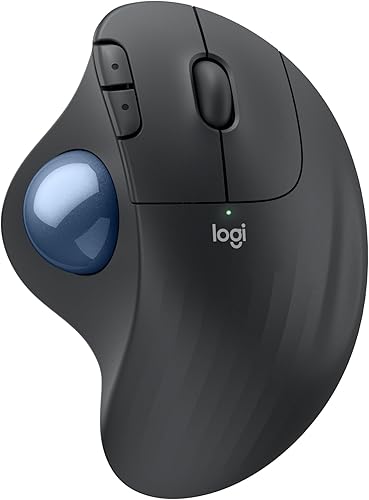 Best for thumb control
Logitech Ergo M575S Wireless Bluetooth Trackball Mouse

Kensington Expert wired vs wireless: which should you choose?
Choose wired if a USB-A cable works with your desk and computer; choose wireless if you want Bluetooth or a receiver connection. The core control layout is similar, so start with the connection that fits your setup.
The wired Kensington Expert Trackball Mouse connects by USB-A. It avoids the need to manage wireless batteries, but the cable needs a clear path and the computer needs an available USB-A port.
The Kensington Expert Wireless Trackball Mouse connects through Bluetooth LE or its USB dongle. It runs on 2 AA batteries, and its auto-sleep feature helps conserve battery life.
Neither connection is automatically better. A wired keyboard, for example, may already occupy a convenient port, so check your available connections before choosing a wired mouse.
Our wired keyboard guide explains the same kind of port and cable planning for a desk setup.
Is the wireless Expert's USB dongle useful?
The dongle gives the wireless Expert another way to connect when you prefer a receiver over Bluetooth. Kensington recommends dongle connectivity for Windows 7 or later.
The wireless Expert's Bluetooth LE connection is described for Windows 8.1 or later and Mac OS X 10.8 or later. Its compatibility information also includes Chrome OS 44 or later, but Linux isn't supported.
A USB-A adapter may be needed if your computer has no matching port. For a wired keyboard setup, this wired keyboard Bluetooth adapter guide explains what to check when adding wireless connectivity to an older device.
Does Bluetooth save a USB port?
Bluetooth can leave a USB port free because it doesn't need the Expert's dongle. That can help if your laptop has few ports or you already use them for a keyboard, drive or dock.
A dongle can still be the simpler choice when you want a receiver connection. Check the exact computer's supported operating system and available ports before deciding; the wireless Expert's connection modes have different compatibility notes.
If you want a wireless trackball but are still comparing connection types across Kensington models, see our guide to Kensington trackball mouse wireless options. It focuses on Bluetooth versus a USB receiver.
What features do both Kensington Expert models share?
Both Expert models pair a 55 mm ball with a scroll ring, customizable buttons and a detachable wrist rest. These shared features make the connection choice more important than a feature checklist.
The large ball provides cursor control, while the scroll ring lets you move through pages and long documents. The detachable wrist rest supports the hand and wrist, and the ambidextrous design can suit either hand.
Kensington describes customization for the buttons, cursor speed and scroll speed through Kensington software. Windows ARM computers aren't currently supported by KensingtonKonnect, and ChromeOS users get basic HID functions without customization.
How does the scroll ring change daily use?
The scroll ring lets you move through pages and long documents without relying only on a wheel. That feature is the same on the wired and wireless Expert.
If you often read long web pages, spreadsheets or documents, the ring may be a useful part of the Expert layout. If you mainly need pointer movement and don't care about a scroll ring, a simpler trackball may suit you better.
The Kensington Orbit trackball mouse comparison covers the Orbit family for buyers considering another Kensington shape and connection choice. The Orbit and Expert are separate designs, so compare their controls and fit before deciding.
Is the wrist rest removable?
Yes, the Expert wrist rest detaches on both models. You can decide whether to use it based on how the trackball sits on your desk and how your hand rests during work.
A detachable rest also gives you room to arrange the trackball without treating the rest as a fixed part of its footprint. Leave enough space for your hand, the ball and the scroll ring to remain easy to reach.
For a wider product comparison, browse our best Kensington trackball mouse picks. It can help if you're deciding between the Expert and other Kensington trackballs.
How should you choose between a central ball and thumb control?
Choose the Expert's central ball if you want a large ball operated by your fingers; choose thumb control if you want to move the cursor with your thumb. For a comparison with vertical mice, see vertical mouse vs trackball.
These approaches place the ball and movement differently under your hand.
The Expert's 55 mm ball sits in the middle of the device, with the scroll ring around it. The Logitech Ergo M575S instead uses thumb control, and its sculpted shape lets you move the cursor without moving the mouse across the desk.
The Logitech connects through Bluetooth or its included Logi Bolt USB receiver. It has quiet clicks and is designed for right-hand use, while the Expert models are ambidextrous.
People who want to compare more trackball shapes can also read our roundup of the best ergonomic trackball mouse. Look for the control style that feels natural to your hand, then match its connection to your computer.
Which Kensington Expert Mouse fits a cable-free desk?
The wireless Expert is the better fit when you want to remove the cable and can use Bluetooth LE or its USB dongle. Its two connection options give you a choice based on the computer and the USB ports you have available.
The wireless model includes the dongle and 2 AA batteries. Auto-sleep helps conserve battery life, and its power settings can be updated in Kensington Konnect software.
A cable-free desk still needs a plan for the receiver or Bluetooth pairing. If your computer is managed by work or school, check whether you can install the software needed for custom button and speed settings.
Which Kensington Expert is easier to set up?
The wired Expert has the simpler connection path if your computer has USB-A; the wireless Expert adds pairing or dongle selection. Either way, check software needs if you plan to customize controls.
The wired model connects over USB-A. The wireless model can connect over Bluetooth LE or with its dongle, so you can pick the method that matches your operating system and port availability.
KensingtonKonnect is used to customize buttons and cursor and scroll speed. On ChromeOS, the trackball's HID functions work without that customization, and Windows ARM computers aren't currently supported by KensingtonKonnect.
If you don't need custom buttons or speed settings, the basic connection may be enough. If you do, confirm software compatibility before you build your workflow around a personalized layout.
What should you check before buying an Expert trackball?
Check computer compatibility, desk space and connection availability before choosing. The right model is the one you can connect and place comfortably in your normal work area.
For the wired model, confirm that you have an accessible USB-A port and a cable route that won't cross a walkway or snag other equipment. For the wireless model, decide whether you'll use Bluetooth LE or the USB dongle, then confirm the matching operating system support.
Measure the space where the trackball and wrist rest will sit. The 55 mm ball and scroll ring need to remain reachable, and your hand should have room to move around the controls.
Also consider whether you want an ambidextrous design or a right-hand thumb trackball. Our guide to the best quiet wireless keyboard and mouse combo may help if you're planning a full wireless input setup, while best silent computer mouse options focus on quieter mouse choices.
Which Kensington Expert Mouse should you pick?
Pick the wired Kensington Expert if you want a direct USB-A connection; pick the wireless Expert if Bluetooth LE or a dongle better fits your desk. Both keep the central 55 mm ball, scroll ring, detachable wrist rest and ambidextrous shape.
Choose the Logitech Ergo M575S if thumb control and quiet clicks matter more than the Expert's central ball layout. Its Bluetooth and Logi Bolt receiver options make it a separate style of trackball to compare against the Kensington models.
Frequently asked questions
What is the difference between the wired and wireless Kensington Expert Mouse?
The wired Expert connects by USB-A, while the wireless Expert connects through Bluetooth LE or a 2.4 GHz USB dongle and uses two AA batteries. Both have a 55 mm ball, a scroll ring, a detachable wrist rest and an ambidextrous design.
Does the Kensington Expert Wireless work with a USB receiver?
Yes. The Expert Wireless can use its USB dongle as well as Bluetooth LE.
The dongle is recommended for Windows 7 or later, while Bluetooth is described for Windows 8.1 or later and Mac OS X 10.8 or later.
Can I customize the buttons on the Kensington Expert trackball?
Both Kensington Expert models have customizable buttons and adjustable cursor and scroll speed through Kensington software. ChromeOS supports basic HID functions, but customization isn't available there; Windows ARM computers aren't currently supported by KensingtonKonnect.
Is the Kensington Expert trackball ambidextrous?
Yes. Both wired and wireless Expert models are described as ambidextrous, and each includes a detachable wrist rest.
Their large central ball is controlled with your fingers, so leave enough desk space for the trackball and rest in a comfortable position.
Should I choose a Kensington Expert or a thumb trackball?
Choose an Expert if you want a large central ball and scroll ring, with wired or wireless connection options. A thumb trackball such as the Logitech Ergo M575S moves the cursor with thumb control and connects by Bluetooth or its included USB receiver.