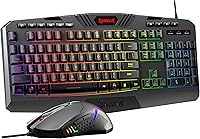
How to Turn On an HP Laptop Keyboard Backlight
To turn on an HP laptop keyboard backlight, press the key with the backlight symbol, often F4, F5, or F11, sometimes with Fn. If no backlight symbol appears, check your model’s manual or product specifications to see whether the keyboard is illuminated.
On this page (6 sections)
- How do you turn on an HP laptop keyboard backlight?
- How can you check whether your HP laptop supports keyboard lighting?
- What should you try if the backlight shortcut doesn't work?
- What should you check before choosing an external backlit keyboard?
- Which shortcut should you use for an HP laptop keyboard backlight?
- How to turn on a backlit keyboard on an HP laptop: what’s the next step?
To turn on an HP laptop keyboard backlight, press the key marked with a keyboard backlight symbol, often F4, F5, or F11, and try holding Fn if needed. If the shortcut does nothing, check your exact model’s manual or specifications because some HP laptops don't have an illuminated keyboard.
How do you turn on an HP laptop keyboard backlight?
Press the function key with the backlight symbol; add Fn if the light doesn't come on. HP uses different keyboard layouts, so the right shortcut depends on the laptop model.
Look across the top row for a small keyboard icon with rays or light marks. Press that key once, then press it again if the laptop cycles through brightness levels or turns the light off.
Some models use F4, F5, or F11, but those keys aren't universal. If the function row controls media or other features by default, try Fn plus the marked key.
How can you check whether your HP laptop supports keyboard lighting?
Check the keyboard and the exact model’s specifications or manual. A backlight symbol on a function key is a useful clue, but model documentation is the better confirmation.
Find the model number on the laptop’s label or in its system information, then search HP support for that model’s manual and specifications. Look for terms such as “backlit keyboard” or “keyboard illumination.”
A backlit keyboard shortcut can't switch on a feature the laptop doesn't have. If the manual identifies a non-backlit keyboard, consider an external illuminated keyboard instead.
For a Mac-focused alternative, read the Apple keyboard with touchpad guide.
What if the HP laptop has no backlight symbol?
Check the model documentation before assuming the keyboard lights up. If the keyboard isn't built for illumination, changing a setting or pressing a different shortcut won't add a backlight.
An external keyboard can add illuminated keys without replacing the laptop’s built-in keyboard. For help weighing wired and wireless options, see our keyboards and mice buying guide.
This KOPJIPPOM keyboard has large print keys and a numeric keypad. Its illumination is a separate keyboard feature, so it can provide lit keys even when the laptop’s built-in keyboard doesn't.
What should you try if the backlight shortcut doesn't work?
Confirm that the keyboard has backlight hardware, then try the marked key with and without Fn. If neither combination works, consult the model’s manual for its specific shortcut and controls.
After confirming support, try these checks:
- Press the backlight key more than once to check for brightness levels.
- Try the same key while holding Fn.
- Restart the laptop and try the shortcut again.
- Check the manual for a timeout or brightness setting.
- Contact HP support if the manual’s steps fail.
Some keyboards turn their light off after a period without typing to save power. If yours lights briefly and then goes dark, check whether the model has an inactivity setting.
Can an external keyboard solve the problem?
Yes, an external backlit keyboard can work around a laptop keyboard that lacks illumination. Choose a connection type that suits your laptop and desk setup.
The KOPJIPPOM Large Print Wireless Keyboard and Mouse has seven backlight colors and three brightness levels. It uses one USB receiver for both devices and has a separate backlight switch.
Check that your laptop has a compatible USB port and that you can keep the keyboard charged. For other options, compare our guides to backlit keyboards for laptops and backlit keyboards for PCs.
What should you check before choosing an external backlit keyboard?
Match the keyboard’s connection, size, and controls to how you use your laptop. A wired model avoids charging, while a wireless one can reduce desk cables.
The KOPJIPPOM Large Print Backlit Keyboard connects by USB and has adjustable white illumination. Its full-size layout includes a numeric keypad, and its large print keys may suit readers who want bigger lettering.
For another wireless option, the Soueto Wireless Keyboard with RGB Backlit offers seven colors, four lighting modes, adjustable brightness, and a built-in holder for a phone or tablet. It connects through a USB-A wireless receiver and has a rechargeable battery.
The Soueto backlight turns off after 120 seconds of inactivity. Its light may also shut off quickly if you test it before connecting the receiver, so connect the receiver first.
If you prefer a cable, explore a wired backlit keyboard. For fewer cables on your desk, compare a wireless backlit keyboard.
Which shortcut should you use for an HP laptop keyboard backlight?
Use the backlight-marked function key, with Fn if required by your model. Confirm that the keyboard supports illumination before troubleshooting further.
If the key turns the light on, press it again to adjust or switch off the backlight. If it doesn't, check the manual for the exact HP model and its function-key behavior.
Choose an external keyboard if your laptop doesn't include a backlight or if its shortcut still fails after you confirm support. For help choosing between connection types and layouts, start with the keyboards and mice buying guide.
How to turn on a backlit keyboard on an HP laptop: what’s the next step?
For an HP laptop with an illuminated keyboard, find the backlight symbol and try its function key with and without Fn. If the shortcut has no effect, verify backlight support and follow the model’s manual.
If your laptop has no illuminated keyboard, choose a wired model for a direct USB connection or a wireless model if you prefer fewer cables. A separate keyboard adds its own light source without changing the laptop hardware.
If you use other desk accessories alongside an external keyboard, our guides explain using Logitech MX Keys and MX Master together, Logitech MX Master vs MX Vertical, and which computers and ports work with the Logitech MK270 keyboard and mouse.
Frequently asked questions
How do I turn on the backlight on my HP laptop keyboard?
Press the keyboard key marked with a backlight symbol, often F4, F5, or F11. On some HP laptops, hold Fn while pressing that key.
The shortcut varies by model, so check your manual if the symbol is missing or the shortcut has no effect.
How do I know if my HP laptop keyboard is backlit?
Look for a backlight symbol on the function keys, then check the exact model’s specifications or manual to confirm. A symbol may look like a keyboard with light rays.
If your model has no illuminated keyboard, a software setting cannot add that hardware feature.
Why won't my HP keyboard backlight turn on?
First confirm that your HP model includes a backlit keyboard and try the marked function key with and without Fn. If the shortcut still fails, check the manual for a brightness or timeout setting and restart the laptop.
The steps can differ by model.
Can I add a backlight to a laptop keyboard that has none?
You generally can't add illumination to a built-in keyboard that lacks backlight hardware. A separate illuminated USB or wireless keyboard is a practical option, provided it works with your computer and connection needs.