What Is Inside a Mini PC? A Clear Answer
A mini PC is a small desktop computer with all the core components packed into a very compact case. Inside, you’ll find the same essential parts as a regular computer, just shrunk down to fit a tiny box.
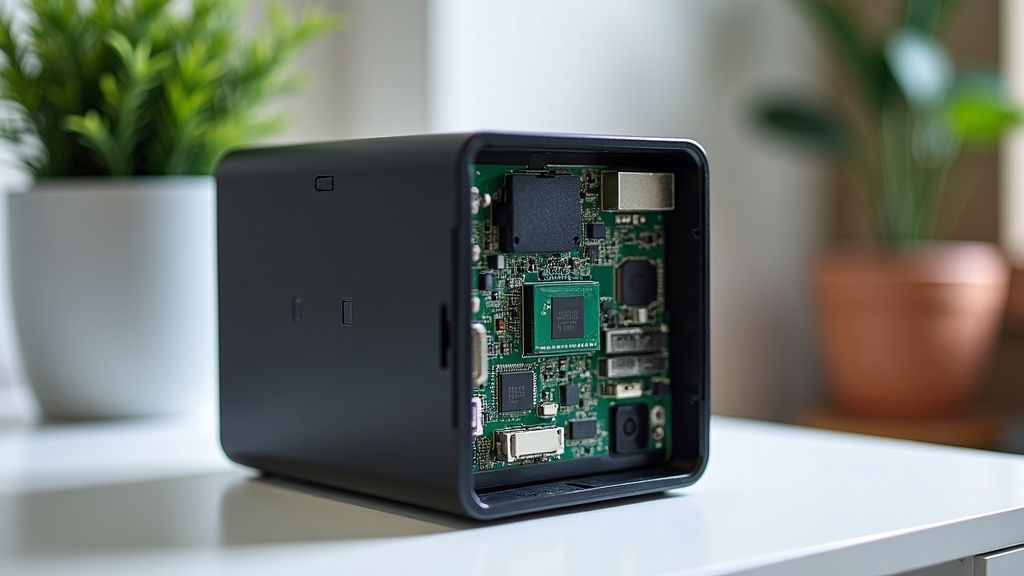
These components include a processor (CPU), memory (RAM), storage, and ports, all mounted on a small motherboard. While it’s much smaller than a tower PC, you’re not sacrificing basic functionality for your everyday tasks.
- A mini PC contains a small motherboard with soldered or replaceable parts.
- Key internals are the CPU, RAM, and storage drive (like an SSD).
- Cooling is handled by tiny fans or passive heat sinks.
- It connects to your monitor, keyboard, and mouse like any other computer.
- You often choose RAM and storage options when you buy one.
Let’s walk through exactly what each of these parts does and why they fit in such a small space.
Understanding the Core Components Inside a Mini PC
A mini PC packs the same fundamental parts as a larger desktop, just in a tiny case. Think of it like a laptop without the screen and keyboard. You get the computing power in a box you can hide behind your monitor. Let’s look at each piece and see why it fits.
The Brain: Your Processor (CPU)
The processor is the brain of your mini PC. It does all the thinking and calculations. In a mini PC, you often find mobile or low-power CPUs. These chips are designed to use less energy and create less heat.
Many experts say that for everyday tasks, a modern mobile CPU is plenty powerful. You can browse the web, stream videos, and work on documents without issue. For heavier tasks like video editing, you might need a more robust model. We found that the CPU choice largely defines what your mini PC can do.
Types of Processors You Might See
- Intel Core i3, i5, i7 (mobile versions) are common for strong performance.
- AMD Ryzen chips are also popular and offer great value.
- Intel Celeron or Pentium are often used for very basic, low-cost models.
It’s not about having the fastest chip; it’s about having the right one for your needs. A basic model is fine for a home theater PC. A faster chip is better if you plan to multitask heavily.
The Short-Term Memory: RAM
RAM is your computer’s short-term memory. It holds the apps and data you’re using right now. More RAM means you can have more programs open at once without slowdown.
In many mini PCs, the RAM is soldered to the motherboard. This means you cannot upgrade it later. Other models have a single slot for a SO-DIMM module. This lets you add or replace the memory later.
We found that 8GB of RAM is a solid baseline for most users. If you often run many applications at once, consider 16GB. For simple tasks like web browsing, 4GB might be enough, but it can feel tight.
Long-Term Storage: Your Hard Drive or SSD
This is where your files, programs, and operating system live permanently. Almost all modern mini PCs use an SSD (Solid State Drive). SSDs are much faster and more durable than old hard drives.
The drive is usually a small M.2 stick that plugs into the motherboard. Some models use a 2.5-inch SATA drive, but M.2 NVMe is now standard for speed.
A 256GB SSD is often the starting point. That’s enough for the operating system and a good number of apps. For storing lots of photos or games, look for 512GB or 1TB options. It’s the most common upgrade you might do later.
The Foundation: The Motherboard
The motherboard is the main circuit board. Everything connects to it. In a mini PC, this board is custom-made to fit the tiny case. It’s a marvel of compact design.
Many of the components, like the CPU and sometimes RAM, are permanently attached. This saves space but limits future upgrades. The board also holds the ports and the circuitry for power. Its small size is the key to the mini PC’s portability.
Keeping It Cool: The Cooling System
Computers generate heat. Even small ones. A mini PC needs a way to cool down its parts. There are two main ways they do this.
- Active cooling uses a tiny fan. It’s quiet but effective for more powerful models.
- Passive cooling uses a heat sink with no fan. It’s completely silent but works best for low-power CPUs.
Some designs use a mix of both. The case itself often acts as a heat sink. It gets warm to the touch, which is normal. It means the heat is being drawn away from the sensitive parts inside.
How It Connects: Ports and Slots
A mini PC is useless without ports to connect things. Despite its size, it usually has a good variety. You’ll find USB ports, a place for your monitor, and more.
The exact ports vary by model. Some have HDMI and DisplayPort for monitors. Others have USB-C for modern devices. You might also find Ethernet, audio jacks, and an SD card slot.
Because space is limited, some ports may be on the back, others on the front or sides. It’s a good idea to check the port layout before buying. You want to make sure it fits your setup.
Common Port Checklist
- USB 3.0/3.1/3.2 for fast file transfers and peripherals.
- HDMI or DisplayPort for connecting your monitor.
- Ethernet port for a stable wired internet connection.
- Audio jack for headphones or speakers.
- Power port (often a dedicated DC jack).
Other Small but Mighty Parts
Inside, you’ll also find tiny components that make it all work. A power supply converts wall power. Wi-Fi and Bluetooth antennas are often built in. Some models include a speaker for system beeps.
The case itself is part of the system. It protects the parts and helps with cooling. Materials like aluminum can help draw heat away. The entire design is focused on saving space.
A Quick Comparison: Mini PC vs. Desktop Internals
To see how similar they are, let’s compare a mini PC to a traditional desktop in a simple table. The main difference is the size and power efficiency of the parts.
| Component | Typical Mini PC | Typical Desktop Tower |
|---|---|---|
| Processor | Mobile or low-power CPU | Desktop-class CPU (more power) |
| RAM | Soldered or single SO-DIMM slot | Multiple upgradeable slots |
| Storage | M.2 NVMe SSD (usually) | SSD + HDD options (more space) |
| Cooling | Tiny fan or passive heat sink | Large fans and heat sinks |
| Size | Very compact (4-8 inches wide) | Large tower case |
| Power Use | Very low (often under 65 watts) | Higher (200-500+ watts) |
This shows that you’re getting the core technology in a smaller, more efficient package. You’re not losing the computer, just its bulk.
Your Mini PC Buying Checklist
When looking at a mini PC’s specs, keep these key items in mind. This helps you match the machine to your daily tasks.
- Processor: Is it an i3/i5/Ryzen 3 for basic use, or something faster?
- RAM: Is it 8GB or more? Is it soldered or can you add more later?
- Storage: How big is the SSD? 256GB is a minimum; 512GB is better.
- Ports: Does it have the USB, video, and internet ports you need?
- Cooling: Is it fanless (silent) or does it have a small fan?
- Expandability: Can you add a 2.5-inch drive or swap the RAM?
This checklist gives you a quick way to compare models. It focuses on what matters most for daily use. You can often find this information on the product page or in the specs sheet.
Why the Tiny Parts Still Work So Well
You might wonder how something so small can be useful. The secret is in modern chip design. Companies like Intel and AMD make powerful processors that use less electricity.
They run cooler and are more efficient. This makes them perfect for small cases. We found that today’s mobile chips are often as fast as desktop chips from just a few years ago. So, you’re not getting a weak computer, just a smart one.
It’s like comparing a modern car engine to one from the 1990s. The new engine is smaller but does more with less fuel. That’s the same idea here. Efficiency and smart design make the mini PC possible.
What Does This Mean for You?
Knowing what’s inside helps you make a better choice. You see that a mini PC is a real computer, not a toy. It’s built for specific tasks, and it does them well.
If your work is web-based, writing, or media, a mini PC is a great fit. It saves desk space and energy. It’s quiet and easy to move. You don’t need to understand every technical detail, just the main parts.
When you shop, focus on the CPU, RAM, and storage. Check the ports for your monitor and keyboard. Remember that the cooling system keeps it running smoothly. These are the key things that make a mini PC work for you.
Conclusion
You’ve seen that a mini PC contains the same essential parts as any desktop computer—a processor, RAM, storage, and a motherboard—all cleverly fitted into a tiny case. It’s not a compromise, but a focused design for everyday computing. For web browsing, media streaming, and office work, it delivers the power you need without the bulk. The key is matching its specific components to your tasks. Before you buy, use the checklist to compare CPU, RAM, ports, and storage. Your next step is to review the specs of a few models and see which one fits your desk and your routine best.
Frequently Asked Questions
Can I upgrade the RAM or storage in a mini PC later?
It depends entirely on the specific model you buy. Some mini PCs have soldered RAM that cannot be changed, while others offer a slot for a memory upgrade. Storage is often more flexible, with most models allowing you to replace the M.2 SSD down the line. Always check the product details for upgrade options before purchasing.
Is a mini PC powerful enough for photo or video editing?
It can be, but you need to choose the right components. We found that for smoother performance in creative apps, you should look for a model with a faster Intel Core i5/i7 or AMD Ryzen 5/7 CPU, at least 16GB of RAM, and a fast NVMe SSD. Basic photo editing is fine on mid-range models, but intensive 4K video editing may require more power.
How much electricity does a mini PC typically use?
Mini PCs are very energy efficient. Most consume between 15 and 65 watts during normal use, which is significantly less than a traditional desktop tower. This means they can run quietly and cost very little to power over time, making them a practical choice for always-on tasks.
Can I connect a mini PC to more than one monitor?
Many mini PCs support dual monitors, but you must check the port specifications. Look for models with at least two video outputs, such as two HDMI ports, or one HDMI and one DisplayPort. The CPU’s graphics capability also matters for driving multiple high-resolution displays smoothly.
Are mini PCs generally noisy?
Noise levels vary by design. Fanless models with passive cooling are completely silent, which is ideal for living rooms or quiet offices. Those with a small fan may produce a very low hum under load, but it’s usually much quieter than a desktop computer. We found that for most home tasks, the noise is minimal and often unnoticeable.